



Old yearbooks contain irreplaceable historical records—student photographs, activity documentation, sports achievements, and cultural snapshots that define institutional memory. Yet these physical volumes deteriorate over time through handling, environmental exposure, and the natural aging of paper and binding materials. Scanning yearbooks at the correct DPI (dots per inch) settings ensures you create digital archives that preserve every detail while remaining practical for storage, display, and sharing.
Many schools and alumni organizations approach yearbook digitization without understanding how resolution choices affect long-term preservation quality, file sizes, and future usability. Scanning at too low a resolution creates digital copies that lose critical detail and fail archival standards. Scanning at excessive DPI produces unnecessarily large files that strain storage systems and slow access without providing meaningful quality improvements.
This comprehensive guide provides technical specifications for scanning old yearbooks with archival quality, covering optimal DPI settings, file format selection, color management, and practical workflows that balance preservation requirements with real-world constraints.
Understanding the relationship between scanning resolution, print quality, and archival longevity helps institutions make informed decisions about digitization projects. The best DPI for scanning old yearbooks is 600 DPI for archival master files, which captures fine details including halftone printing patterns while creating manageable file sizes. This resolution exceeds the 400 DPI minimum recommended by archival standards while avoiding the diminishing returns of higher settings.

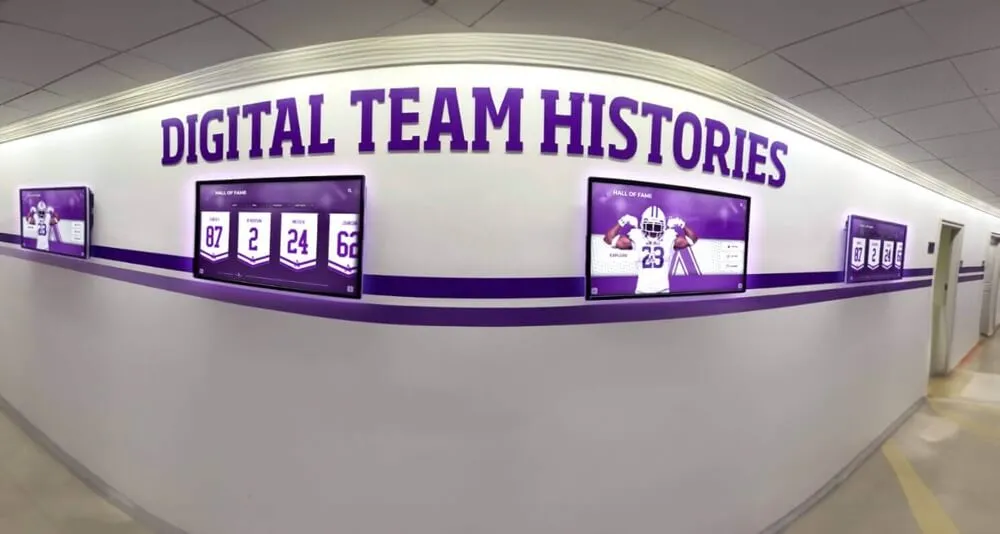
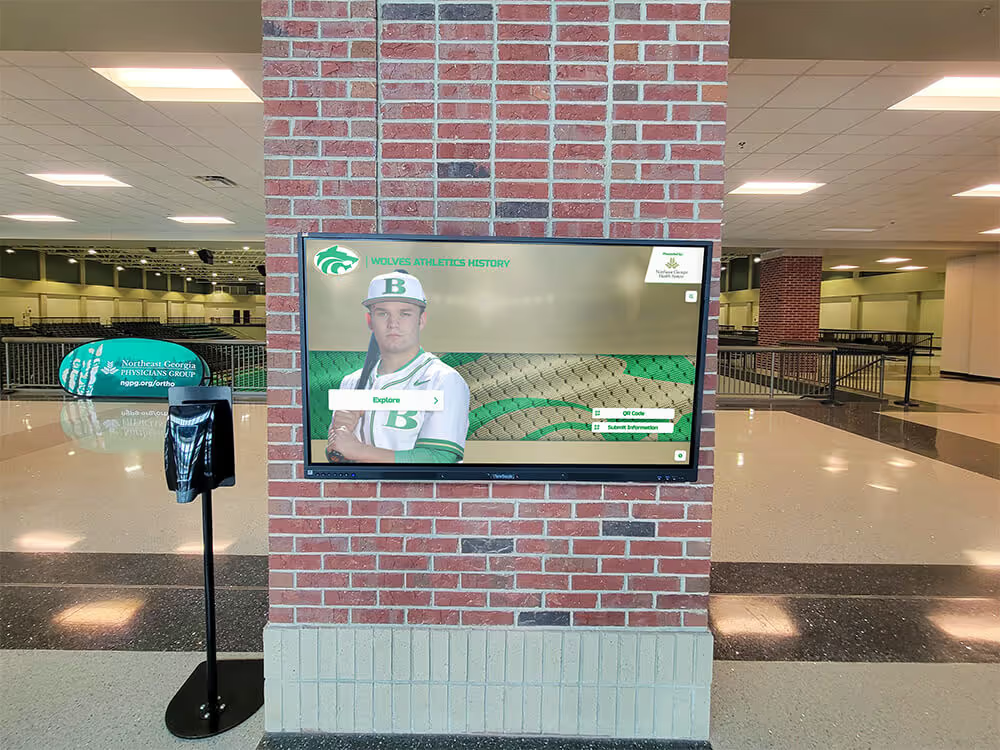
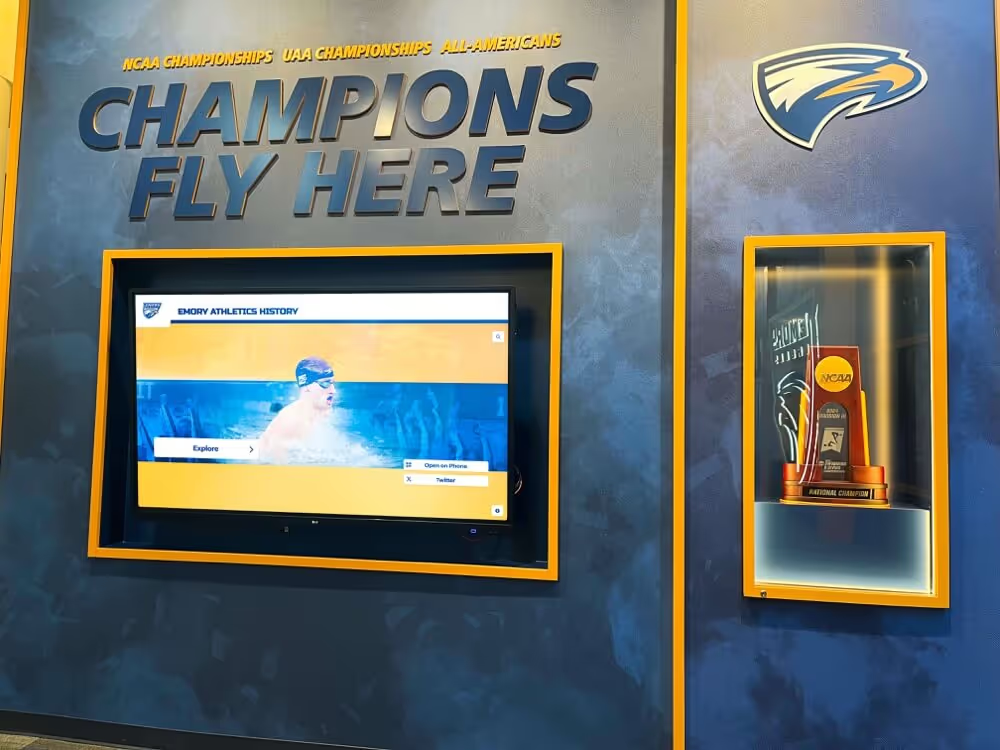
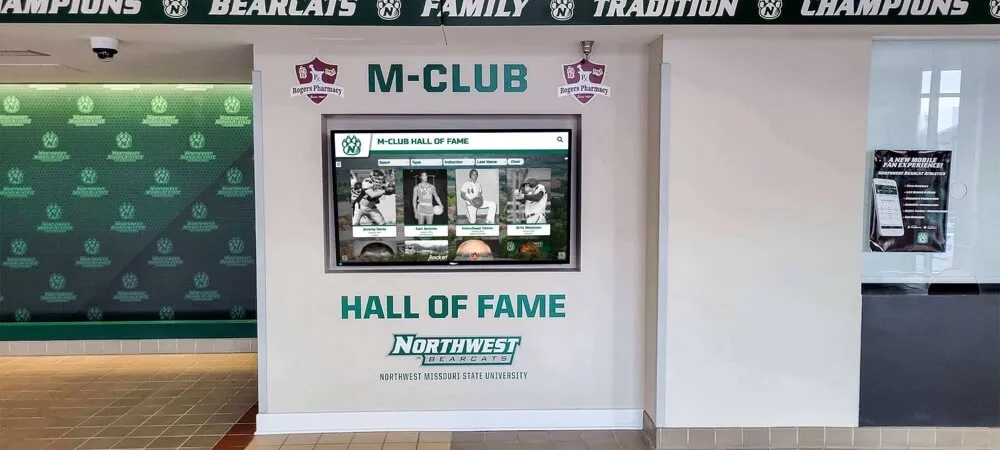
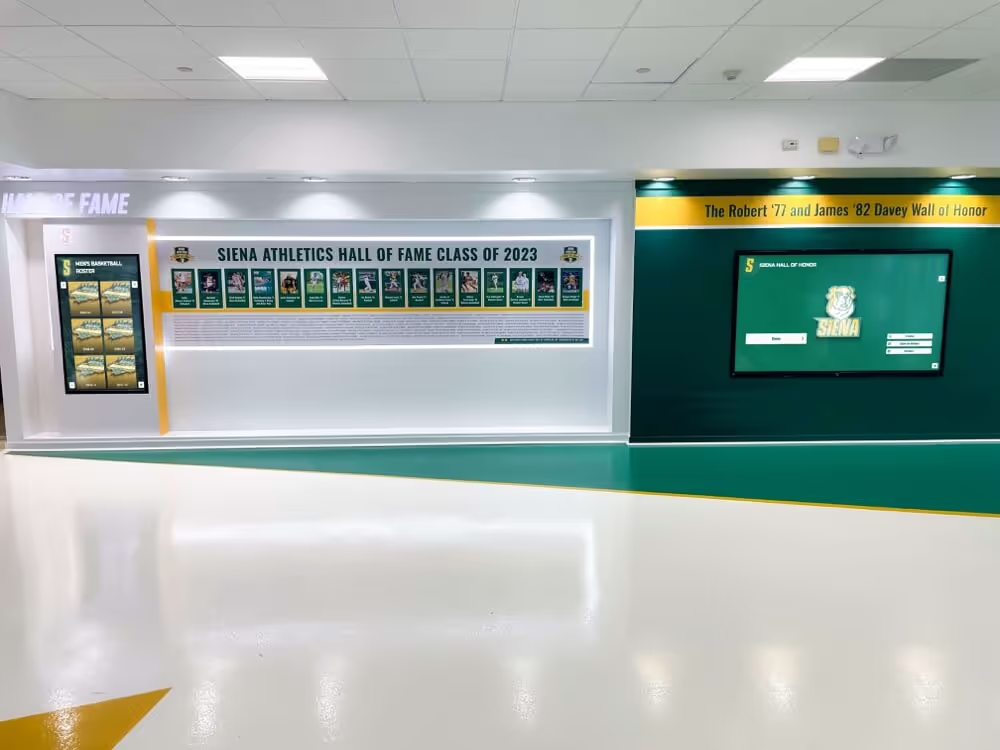
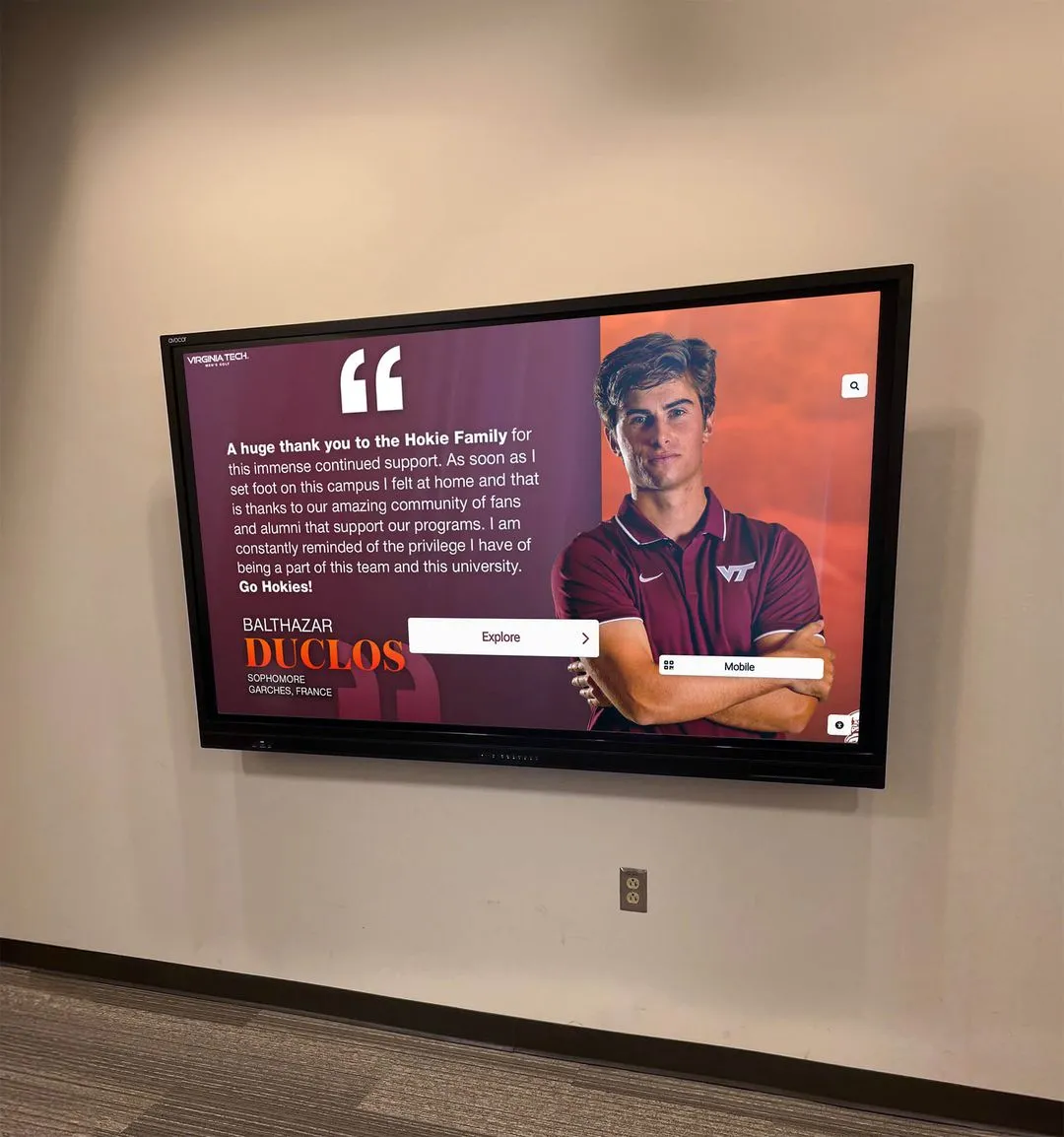
Properly scanned yearbook content preserves historical details while enabling modern digital display and sharing
Understanding DPI and Scanning Resolution
Resolution fundamentally determines how much detail your digital copy captures from the physical yearbook page.
What DPI Actually Measures
DPI (dots per inch) quantifies scanning resolution by counting how many individual pixel samples the scanner captures per linear inch of the source document. Higher DPI values capture more detail but produce proportionally larger files:
- 300 DPI: Captures 90,000 pixels per square inch (300 × 300)
- 600 DPI: Captures 360,000 pixels per square inch (600 × 600)
- 1200 DPI: Captures 1,440,000 pixels per square inch (1200 × 1200)
A standard 8.5" × 11" yearbook page scanned at 600 DPI produces an image of 5,100 × 6,600 pixels, totaling approximately 33.7 megapixels—sufficient to capture fine details while remaining manageable.
Resolution vs. Print Quality Relationship
Understanding how original printing affects scanning requirements helps optimize DPI selection:
Halftone Screen Frequency
Most yearbooks were printed using halftone screens ranging from 85-150 lines per inch (LPI). To capture halftone patterns accurately without moiré interference, scanning resolution should be at least 2× the screen frequency, meaning 170-300 DPI minimum. However, for archival purposes where you want to preserve the actual halftone dots themselves, 600 DPI provides superior capture.
Photographic Print Quality
Professional yearbook portraits typically used continuous-tone photographic processes before being converted to halftones for printing. The 600 DPI scanning resolution captures these source images with quality exceeding the printed halftone representation, preserving maximum detail for future enhancement or reproduction.
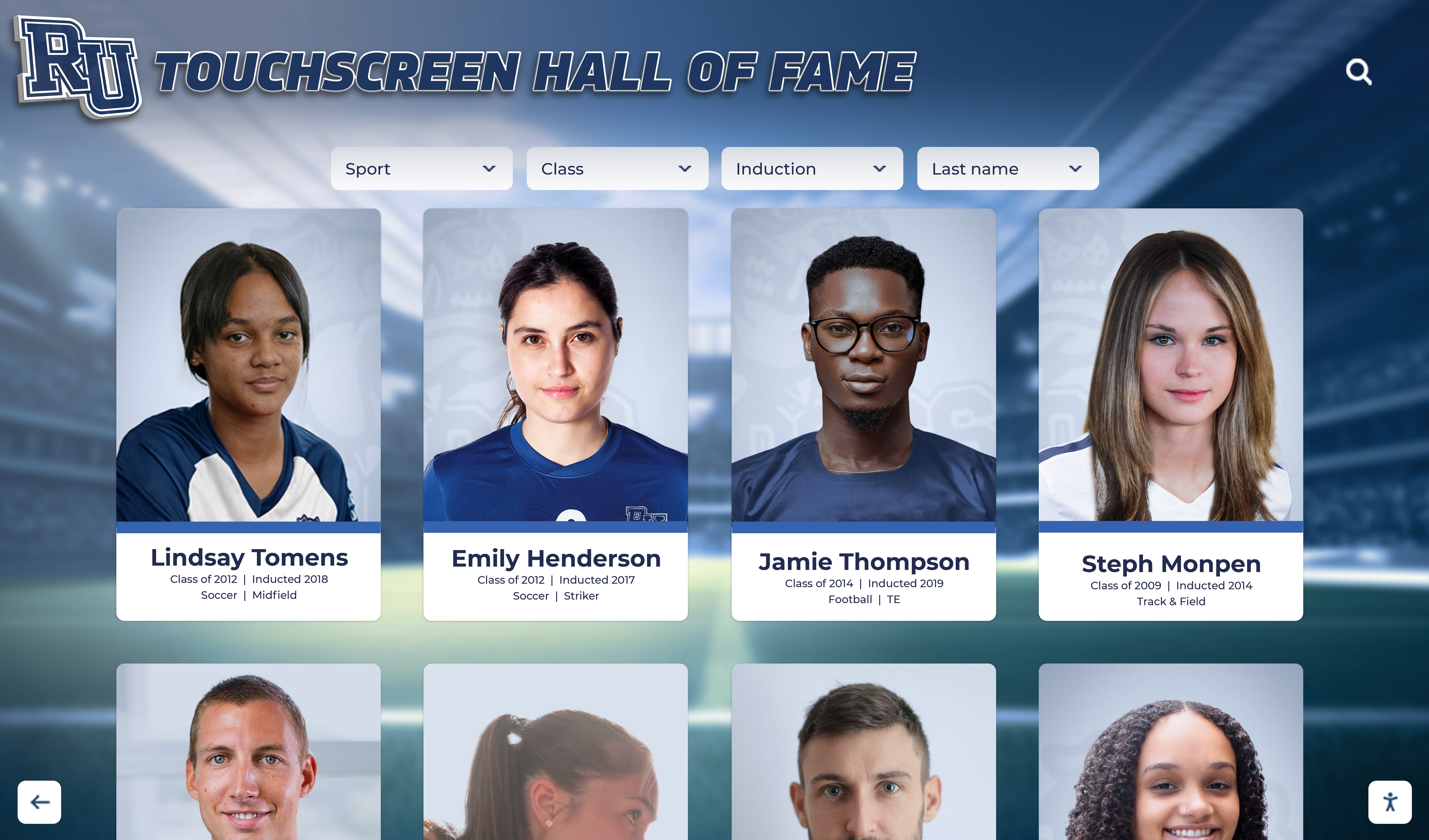
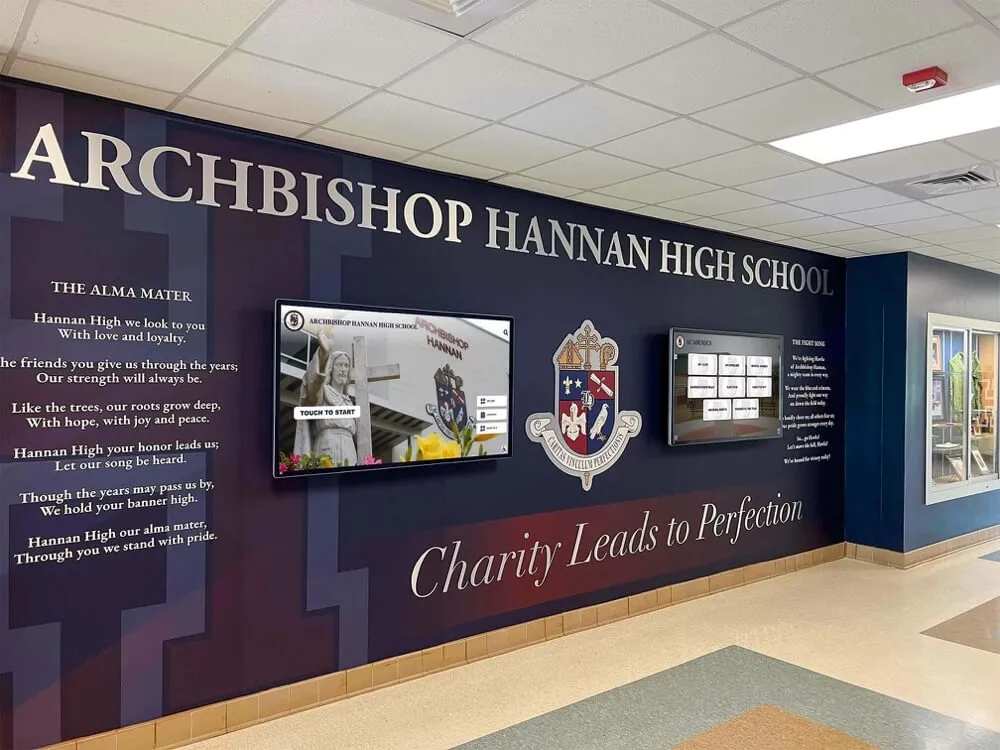
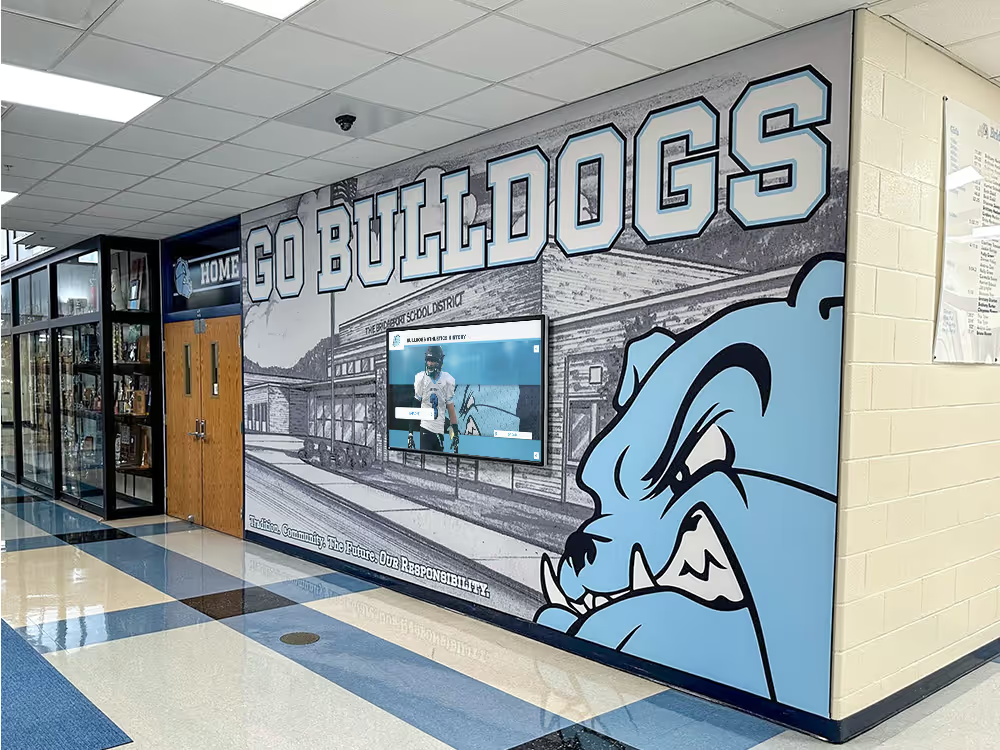
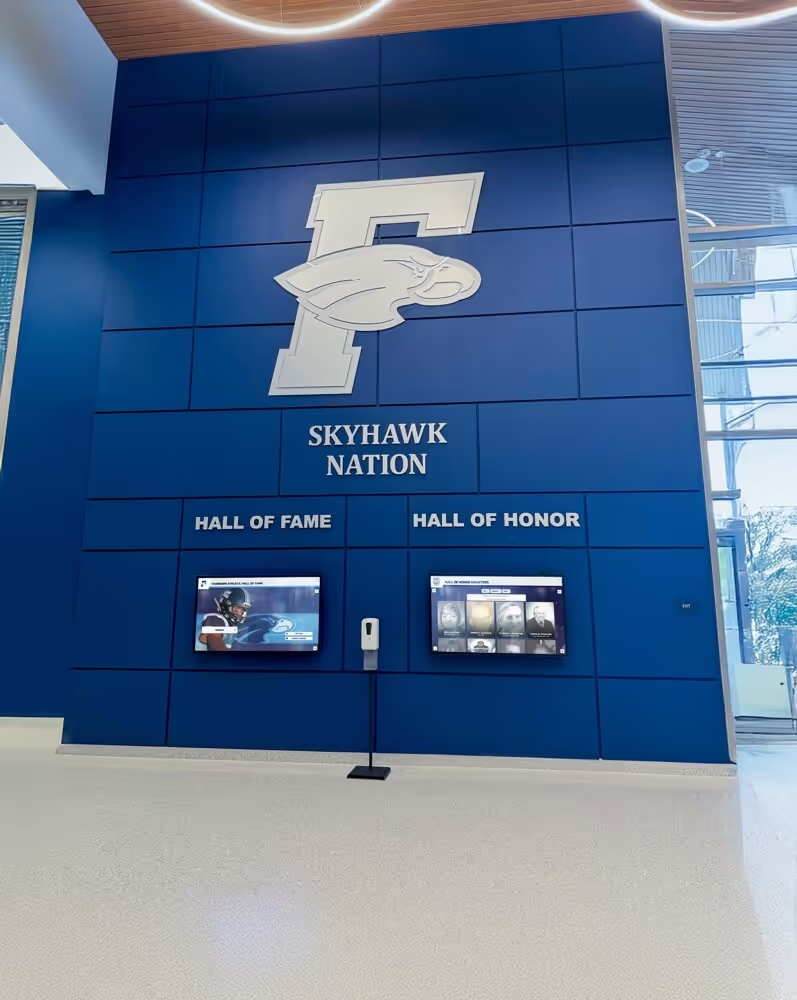
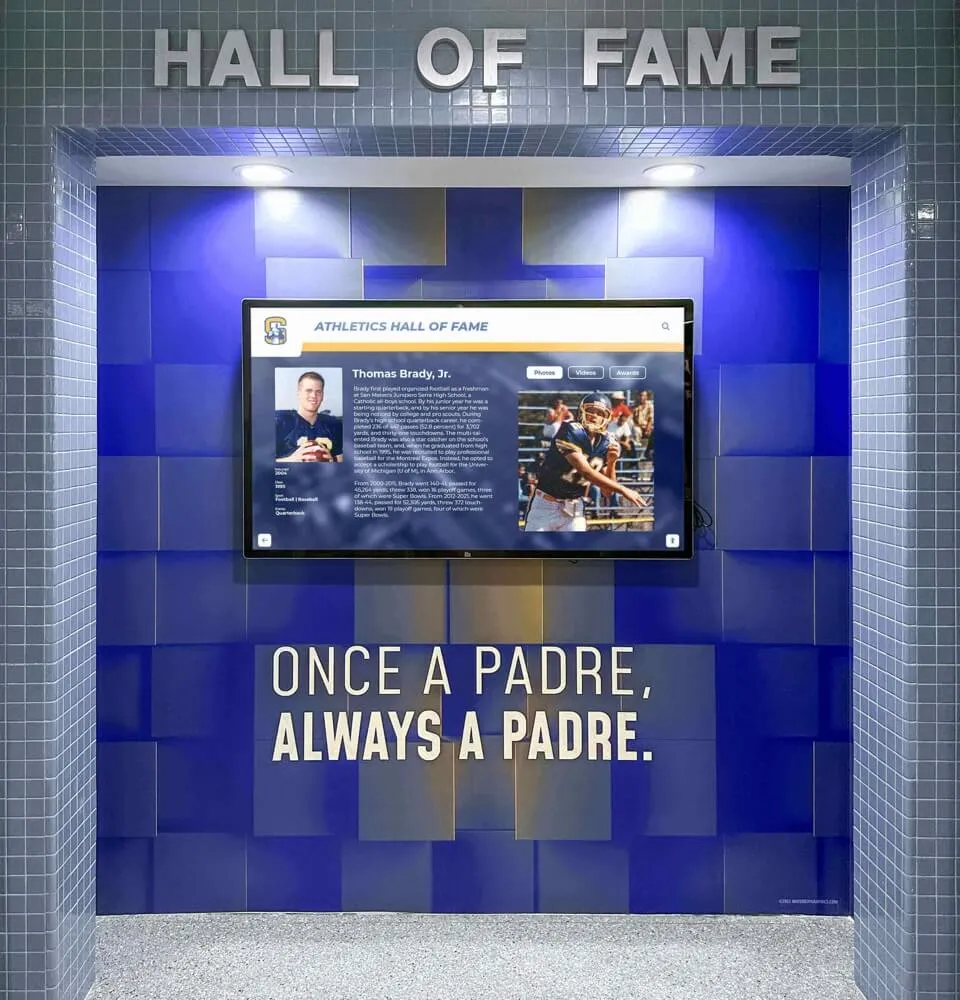
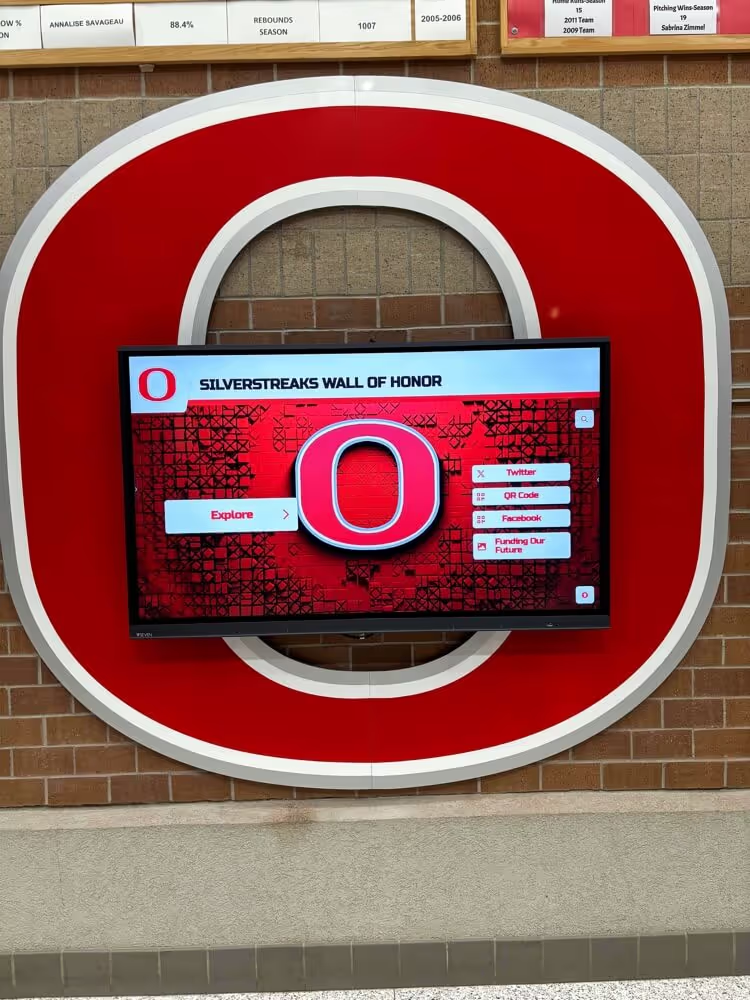
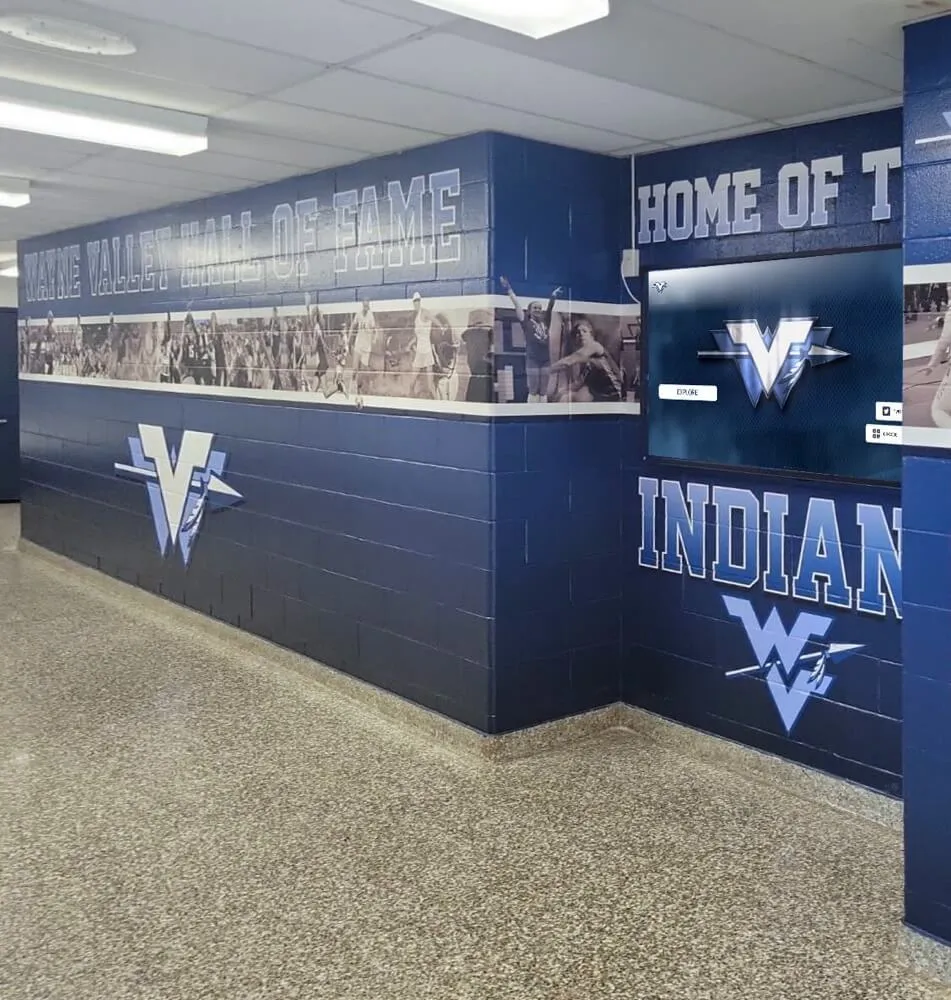
High-resolution scanning enables detailed digital displays that let viewers explore historical photographs closely
Recommended DPI Settings for Different Yearbook Scanning Purposes
Different use cases require different resolution approaches balancing quality against practical considerations.
Archival Master Files: 600 DPI
For permanent archival preservation creating master files intended for long-term storage, 600 DPI represents the optimal balance between quality and practicality:
Why 600 DPI Works for Archives
- Captures fine details including text, halftone patterns, and image nuances
- Meets or exceeds archival standards from organizations including the Library of Congress
- Allows future derivative creation for various purposes without rescanning
- Produces manageable file sizes averaging 30-50 MB per page (TIFF format)
- Preserves details not visible in original print but recoverable through enhancement
Archival Master Best Practices
- Scan in color even for black-and-white yearbooks to capture aging patterns and paper tone
- Use uncompressed or lossless compression formats (TIFF, PNG)
- Maintain bit depth of at least 24-bit color (8 bits per channel)
- Store master files on redundant backup systems with geographic separation
- Create detailed metadata documenting scanning parameters and original condition
Schools implementing comprehensive digital archival systems typically maintain 600 DPI masters while generating lower-resolution derivatives for different access purposes.
Access Copies: 300 DPI
For everyday viewing, sharing, and general access, 300 DPI derivative copies provide excellent quality with significantly smaller file sizes:
Access Copy Advantages
- One-quarter the file size of 600 DPI originals (approximately 8-12 MB per page)
- Sufficient quality for on-screen viewing at any reasonable zoom level
- Acceptable for standard print reproduction up to original size
- Faster loading and transmission for web sharing and email
- Easier integration into digital yearbook platforms and recognition displays
Creating Effective Access Copies
- Generate from 600 DPI masters rather than rescanning at lower resolution
- Apply light sharpening to compensate for downsampling
- Convert to JPEG with quality setting of 90-95 for size reduction
- Add watermarks or institutional identifiers if desired
- Optimize color for screen display rather than print
Web Display: 150-200 DPI
For website publication and online viewing, moderate resolution balances visual quality against page loading speed:
Web-Optimized Resolution
- Provides sharp display on standard monitors and mobile devices
- Creates file sizes of 2-4 MB per page, enabling reasonable loading times
- Sufficient detail for browsing and identification purposes
- Allows zooming to view specific sections clearly
- Integrates smoothly with school history software platforms
Modern touchscreen displays and digital recognition walls typically use these web-optimized files to provide fast, responsive browsing of historical yearbook content while maintaining sufficient quality for clear viewing.
OCR and Text Recognition: 400-600 DPI
When scanning yearbooks with the goal of making text searchable through optical character recognition, specific resolution requirements apply:
OCR Optimization
- 400 DPI minimum for reliable text recognition in standard fonts
- 600 DPI recommended for small text, unusual fonts, or degraded pages
- Black-and-white or grayscale scanning often sufficient for text-only OCR
- Proper contrast adjustment critical for recognition accuracy
- Consider deskewing and cleanup preprocessing before OCR
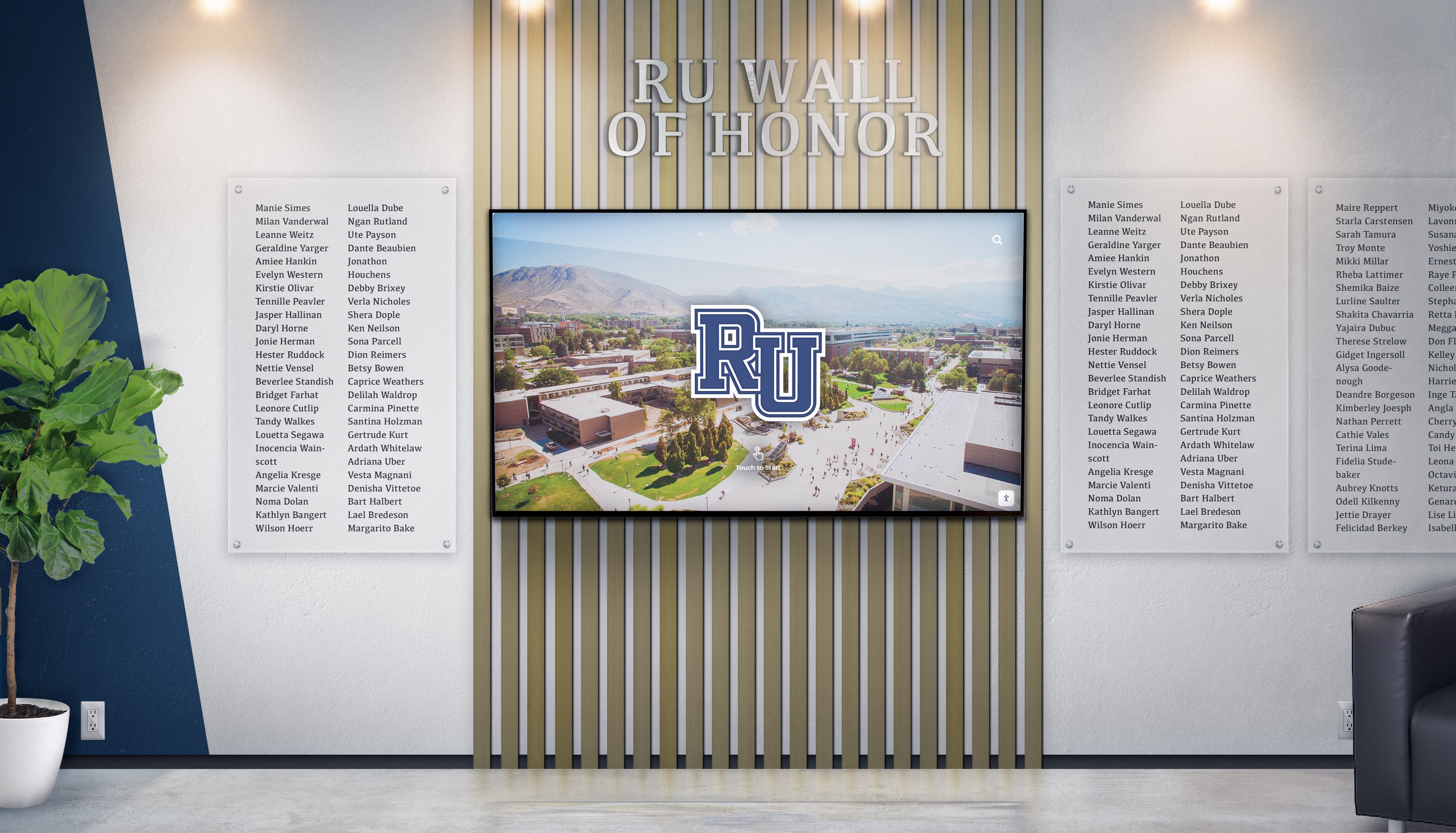
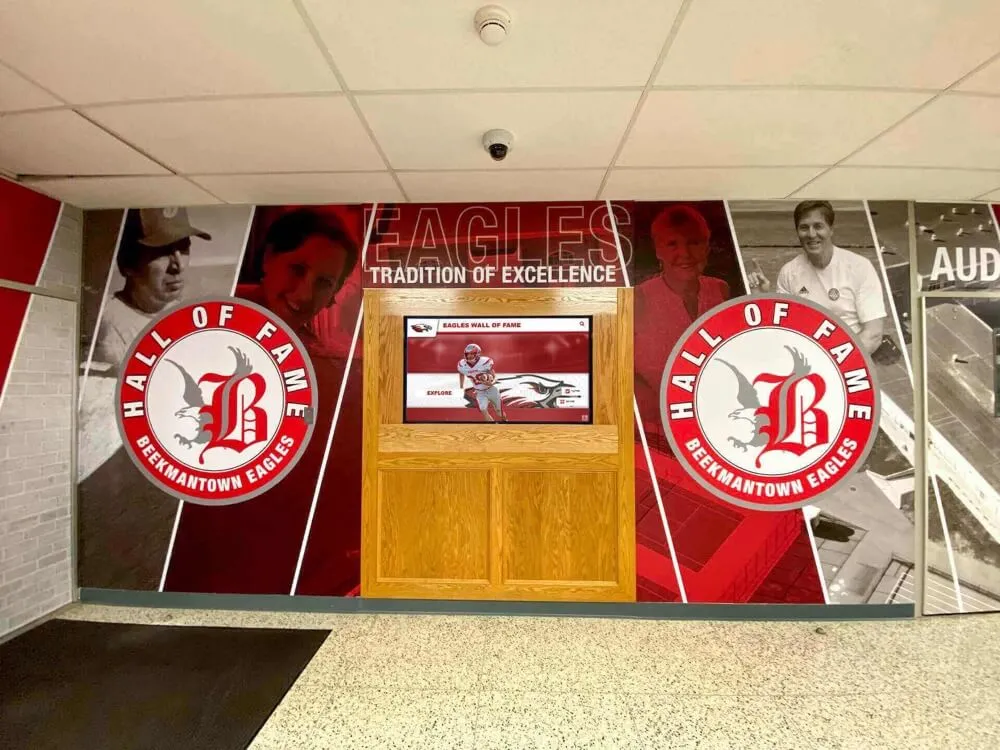
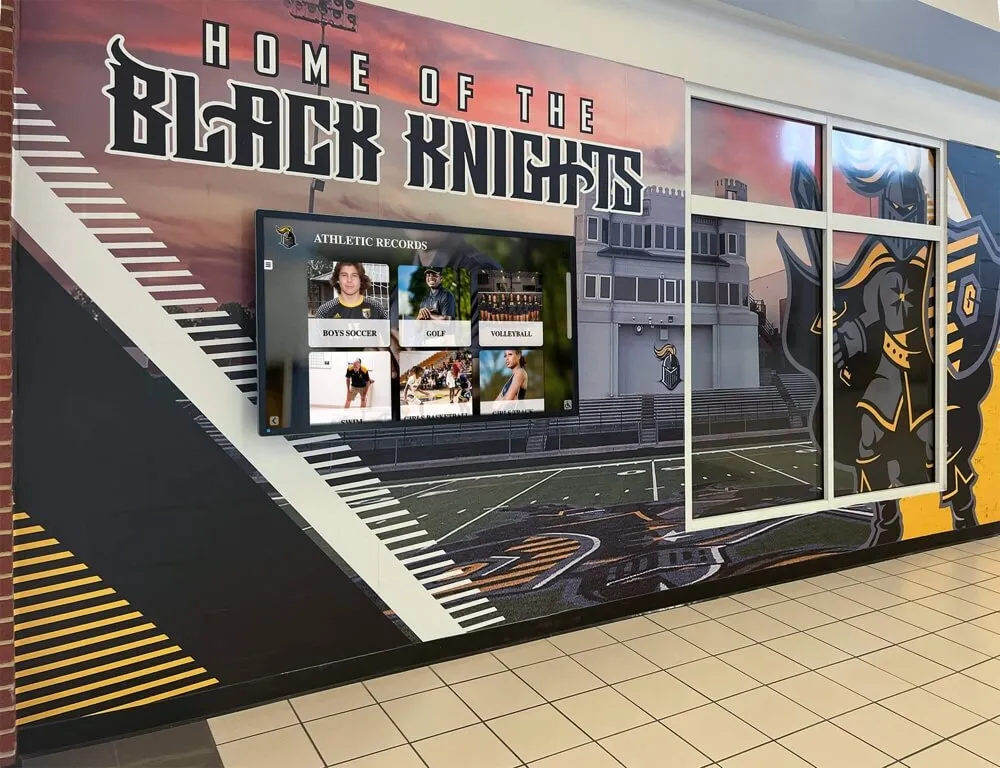
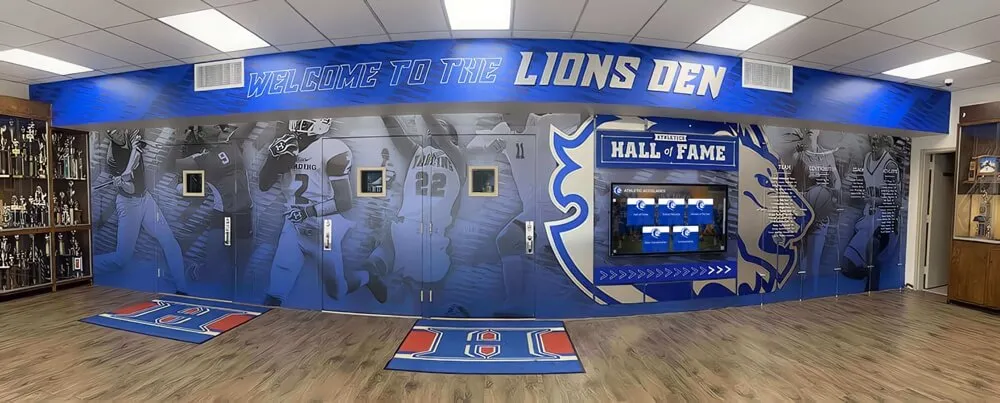
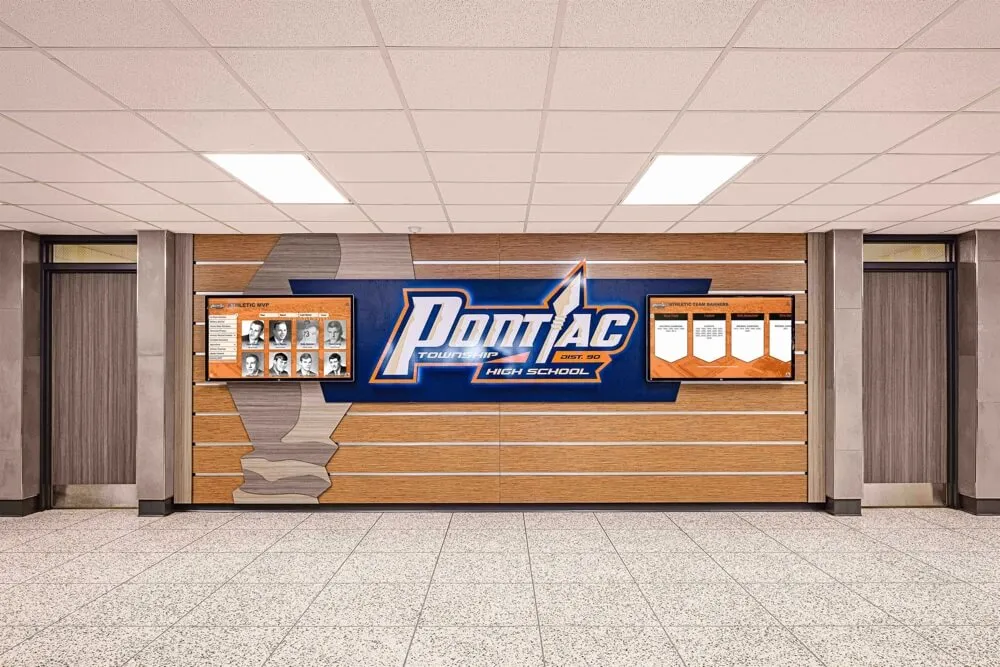
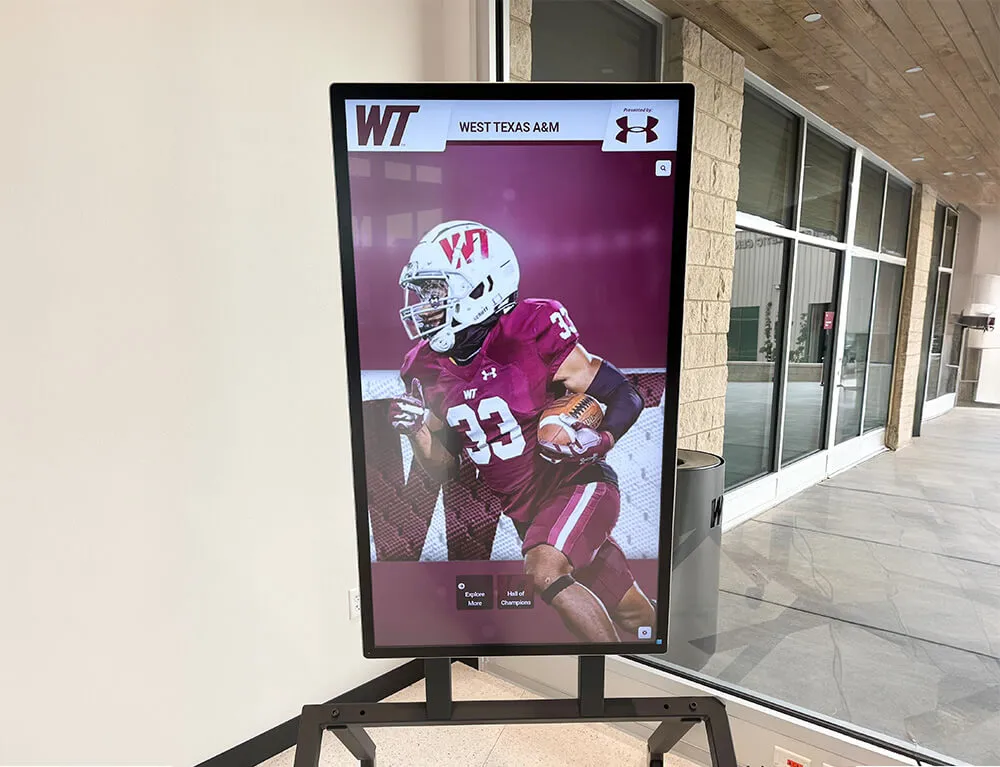
Digital displays bring archived yearbook content to life in modern recognition installations
File Format Selection for Yearbook Scanning
Resolution choices work together with file format selection to determine final archive quality and usability.
Archival Master Format: Uncompressed TIFF
For permanent preservation masters, uncompressed TIFF (Tagged Image File Format) provides maximum quality retention:
TIFF Format Advantages
- Lossless storage preserving every scanned pixel exactly
- Wide support across archival systems and image software
- Comprehensive metadata embedding capabilities
- Multiple page support for document scanning
- Industry standard for digital preservation
TIFF Configuration Settings
- No compression for true archival masters
- LZW or ZIP compression for space savings without quality loss
- 24-bit color depth minimum (8 bits per RGB channel)
- 48-bit color depth for maximum future-proofing
- Embedded ICC color profiles for accurate reproduction
A typical yearbook page scanned at 600 DPI as uncompressed TIFF produces files of 30-50 MB depending on content complexity and bit depth.
Access Format: High-Quality JPEG
For general distribution and access, JPEG with conservative compression settings balances quality against file size:
JPEG Best Practices for Yearbooks
- Quality setting of 90-95 (on 0-100 scale) for minimal visible compression
- Baseline encoding for maximum compatibility
- Embedded EXIF metadata documenting source and creation details
- sRGB color space for consistent screen display
- Appropriate resolution for intended use (300 DPI for potential printing)
JPEG compression reduces file sizes by 85-95% compared to uncompressed TIFF while maintaining excellent visual quality when conservative settings are used.
PDF for Document Organization
Many institutions organize scanned yearbooks as multi-page PDF documents providing convenient book-like browsing:
PDF Yearbook Archives
- Each yearbook becomes a single searchable PDF file
- Embedded OCR text layer enables searching for names and terms
- Bookmarks and page labels facilitate navigation
- Compression settings balance quality and file size
- Compatible with most devices and viewing software
When creating PDFs from scanned yearbooks, use 300 DPI JPEG-compressed images within the PDF container for files averaging 30-80 MB per complete yearbook, depending on page count and content.
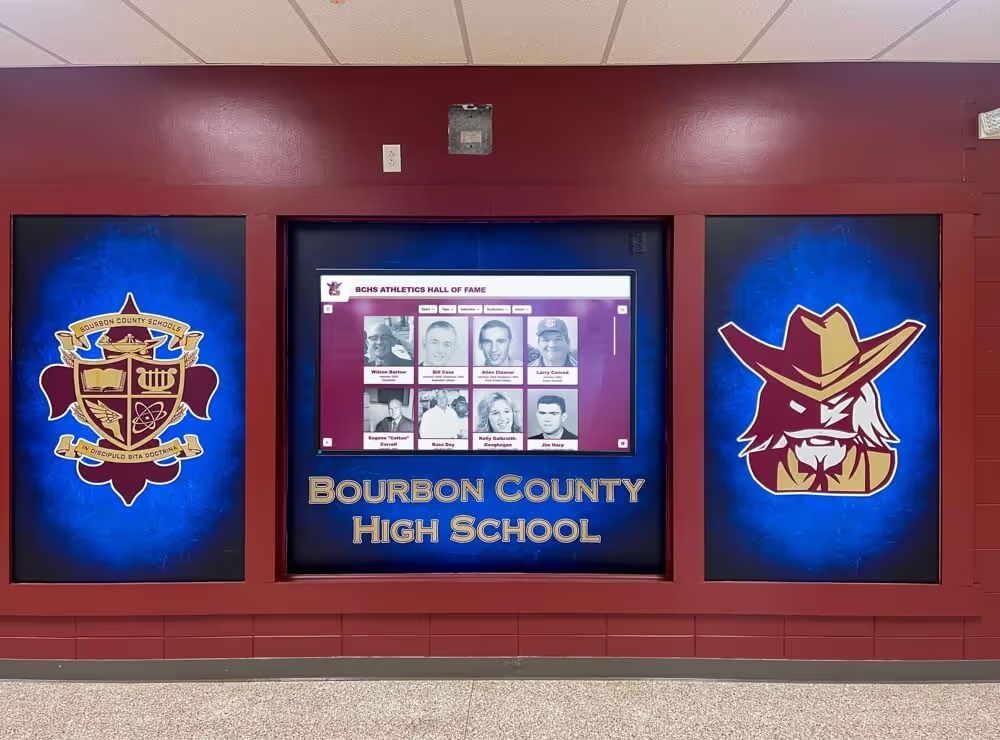
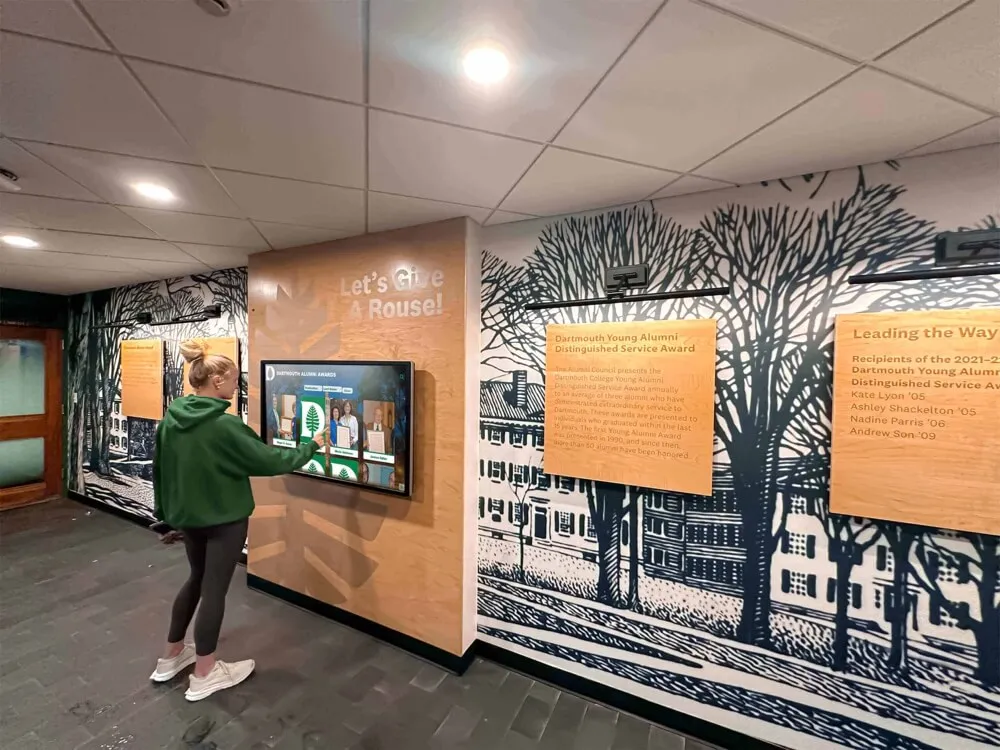
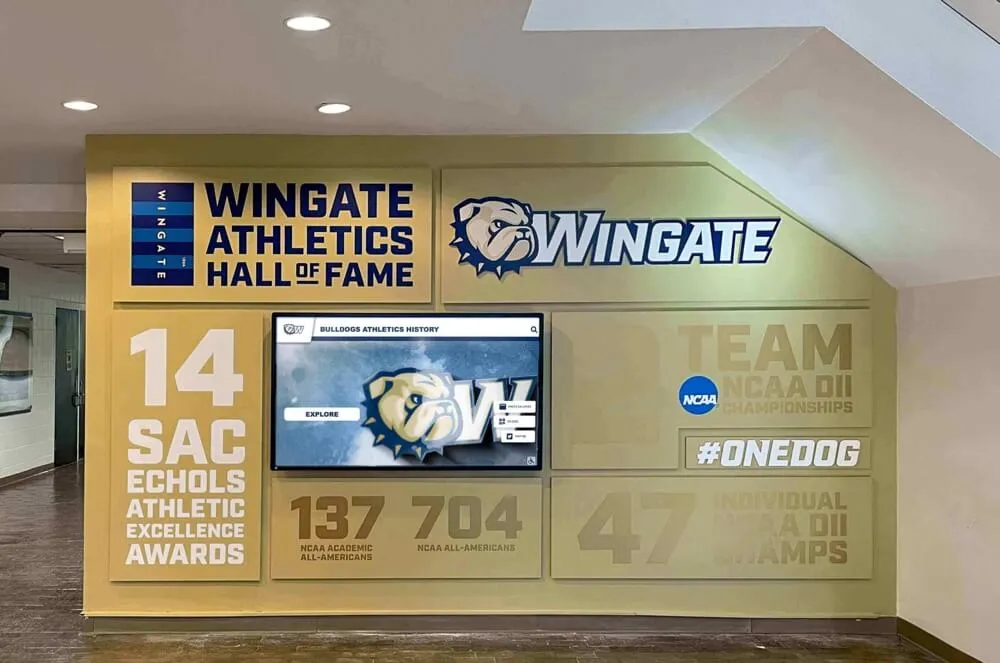
Scanned yearbook content integrates seamlessly into modern [digital recognition displays](https://halloffamewall.com/blog/student-achievement-display-ideas-creative-ways-schools-celebrate-academic-success/?utm_source=organic&utm_medium=seo-auto&utm_content=digitalawardsdisplay&utm_campaign=best-dpi-for-scanning-old-yearbooks&utm_term=seo)
Color Management and Bit Depth Considerations
Beyond resolution and format, color settings significantly impact archival quality and future usability.
Color vs. Grayscale Scanning
Even when scanning black-and-white yearbooks, color scanning often provides superior archival quality:
Color Scanning Advantages
- Captures paper aging, staining, and discoloration as historical evidence
- Preserves subtle tone variations not visible in grayscale conversion
- Allows future extraction of maximum detail through color channel separation
- Documents the artifact’s actual appearance at scanning time
- Enables better contrast enhancement and restoration in post-processing
When Grayscale Suffices
- Truly black-and-white content with no tonal variation of interest
- Severe storage constraints requiring file size reduction
- OCR-only purposes where color provides no benefit
- Content that will only ever be reproduced in black and white
Bit Depth Selection
Bit depth determines how many distinct color or tone values the scan can capture:
Standard 24-bit Color (8 bits per channel)
- Captures 16.7 million distinct colors
- Sufficient for virtually all yearbook scanning purposes
- Balances quality with reasonable file sizes
- Compatible with all image software and display systems
- Recommended minimum for archival color scanning
Extended 48-bit Color (16 bits per channel)
- Captures 281 trillion distinct colors
- Preserves extended dynamic range for extreme enhancement
- Recommended only for very high-value materials
- Doubles file sizes compared to 24-bit equivalents
- Requires specialized software for full utilization
For most institutional yearbook scanning projects, 24-bit color at 600 DPI provides archival quality with practical file sizes and universal compatibility.
Scanner Selection and Scanning Techniques
Equipment choices and scanning methodology significantly affect final quality regardless of resolution settings.
Flatbed Scanner Requirements
Professional flatbed scanners designed for document scanning provide optimal results for bound yearbooks:
Scanner Specifications
- Optical resolution of at least 600 DPI (not interpolated)
- Scan bed accommodating yearbook size (typically 11" × 17" or larger)
- Even illumination across the entire scan area
- Color accuracy with calibration capabilities
- Book-edge scanning mode to minimize spine shadow
Scanner Brands and Models
- Epson Expression series offers excellent quality-to-cost ratio
- Canon imageFORMULA flatbeds for production scanning
- Fujitsu fi-series for high-volume institutional projects
- Specialized book scanners for valuable or fragile volumes
Avoid document feed scanners and multi-function printers for yearbook scanning, as they cannot accommodate bound volumes and typically lack the optical quality needed for archival work.
Scanning Technique Best Practices
Proper scanning technique ensures consistent, high-quality results across entire yearbook collections:
Physical Handling
- Clean scanner glass thoroughly before each session
- Support yearbook spine to prevent binding damage
- Use consistent positioning for all pages
- Avoid excessive pressure that might damage aging bindings
- Wear clean cotton gloves when handling very old or fragile volumes
Technical Settings
- Disable any automatic enhancement or sharpening features
- Use manual exposure mode for consistent results
- Scan slightly larger than page boundaries to capture bleed
- Create test scans to verify settings before full production
- Document all scanner settings for future reference
Quality Control
- Inspect each scan immediately after capture
- Check focus, exposure, color balance, and coverage
- Rescan any pages with defects rather than attempting digital repair
- Maintain consistent lighting conditions throughout project
- Verify file integrity before discarding temporary scans
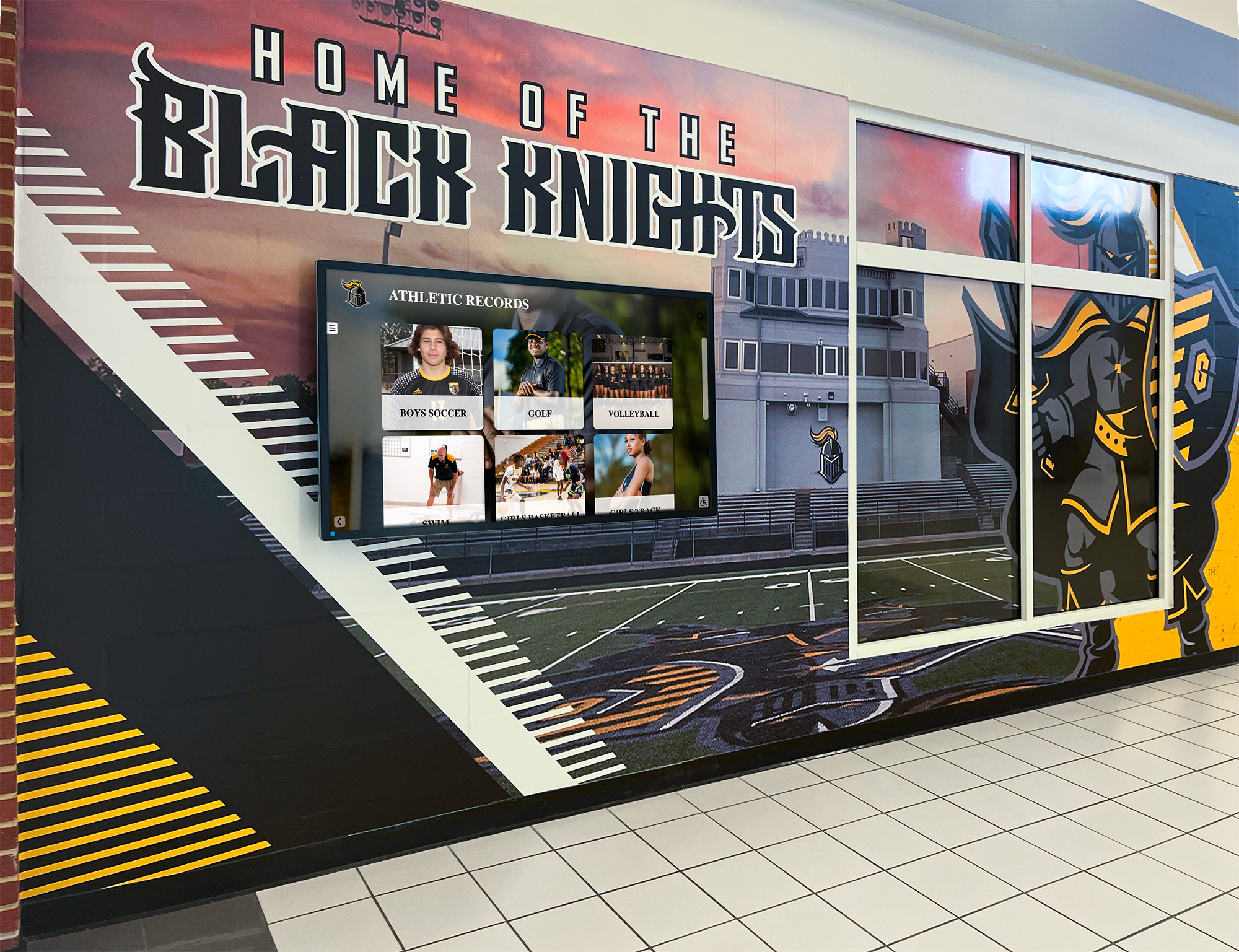
Scanned yearbook content creates powerful historical [recognition displays in school hallways](https://toucharchives.org/blog/team-photo-ideas-creative-ways-to-capture-and-display-team-spirit/?utm_source=organic&utm_medium=seo-auto&utm_content=digitalawardsdisplay&utm_campaign=best-dpi-for-scanning-old-yearbooks&utm_term=seo)
Post-Scanning Processing and Enhancement
Raw scans benefit from careful processing to optimize quality while maintaining archival authenticity.
Essential Post-Processing Steps
A systematic approach to post-scan processing improves usability without compromising archival integrity:
Geometric Correction
- Deskew pages to correct for slight rotational misalignment
- Crop to consistent page boundaries removing scanner bed edges
- Correct perspective distortion from uneven book positioning
- Straighten horizons and architectural elements in photographs
- Maintain aspect ratio without introducing artificial stretching
Tonal Adjustment
- Set proper white and black points for optimal contrast
- Adjust midtones to match original appearance
- Correct color casts from aging paper or scanner calibration drift
- Preserve paper texture and aging characteristics in archival masters
- Create separate optimized versions for display if needed
Cleanup and Restoration
- Remove scanner dust and artifacts not part of original
- Repair obvious defects like torn corners or stains
- Consider whether to preserve or remove aging marks based on archival philosophy
- Document any restoration work in metadata
- Maintain unprocessed masters alongside enhanced versions
What NOT to Do in Post-Processing
Certain processing approaches compromise archival authenticity and should be avoided in master files:
Avoid Over-Processing
- Excessive sharpening that creates halos and artifacts
- Aggressive noise reduction that destroys fine detail
- Saturation increases that misrepresent original colors
- Cloning or synthesis of missing content
- Automatic enhancement algorithms without manual review
Create a clear archival policy distinguishing between minimal technical processing (acceptable in masters) and interpretive enhancement (reserved for derivative copies only).
Storage, Backup, and File Organization
Proper digital asset management ensures scanned yearbooks remain accessible and protected for decades.
File Naming Conventions
Systematic naming enables efficient organization and retrieval:
Recommended Naming Structure
[Institution]_Yearbook_[Year]_Page[###]_[Resolution].[ext]
Example: LincolnHS_Yearbook_1967_Page042_600dpi.tif
Naming Best Practices
- Use consistent abbreviations and separators
- Include year in YYYY format for proper chronological sorting
- Zero-pad page numbers for correct alphabetical order
- Include resolution in filename for easy identification
- Avoid spaces and special characters for maximum compatibility
Directory Organization
Hierarchical folder structure facilitates navigation and management:
Suggested Folder Hierarchy
/Yearbook_Archives/
  /Masters/
    /1960s/
      /1967/
        [high-resolution TIFF masters]
    /1970s/
  /Access_Copies/
    /1960s/
      /1967/
        [300dpi JPEG derivatives]
  /Web_Optimized/
  /PDF_Complete_Books/
Backup and Redundancy
Archival files require comprehensive backup strategies protecting against data loss:
3-2-1 Backup Rule
- Maintain 3 total copies of all archival files
- Store copies on 2 different media types (hard drives, optical, tape, cloud)
- Keep 1 copy off-site for disaster protection
Backup Verification
- Verify backup integrity through checksums or hash values
- Test restore procedures periodically
- Monitor storage media health and replace before failure
- Update storage technology as media formats evolve
- Document backup procedures and schedules
Cloud storage services like Amazon S3 Glacier provide cost-effective off-site archival storage with high durability guarantees, while local RAID arrays ensure fast access to frequently-used files.
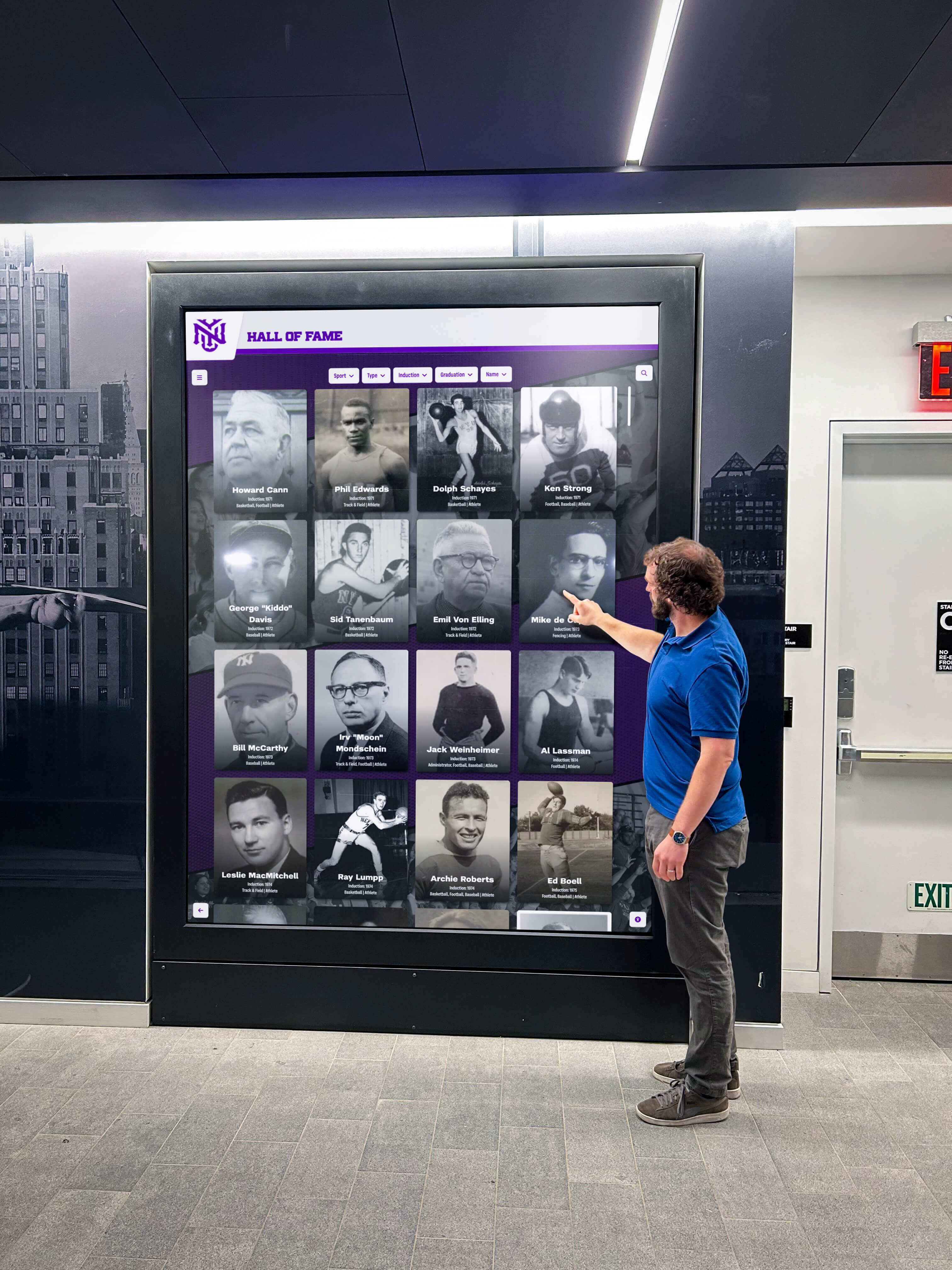
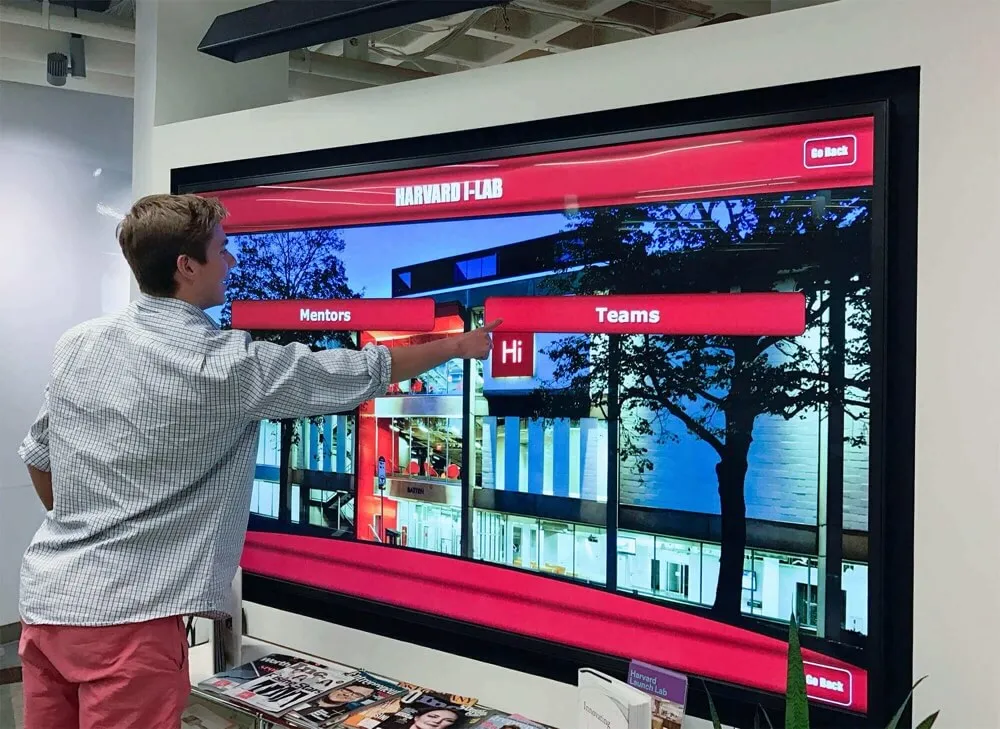
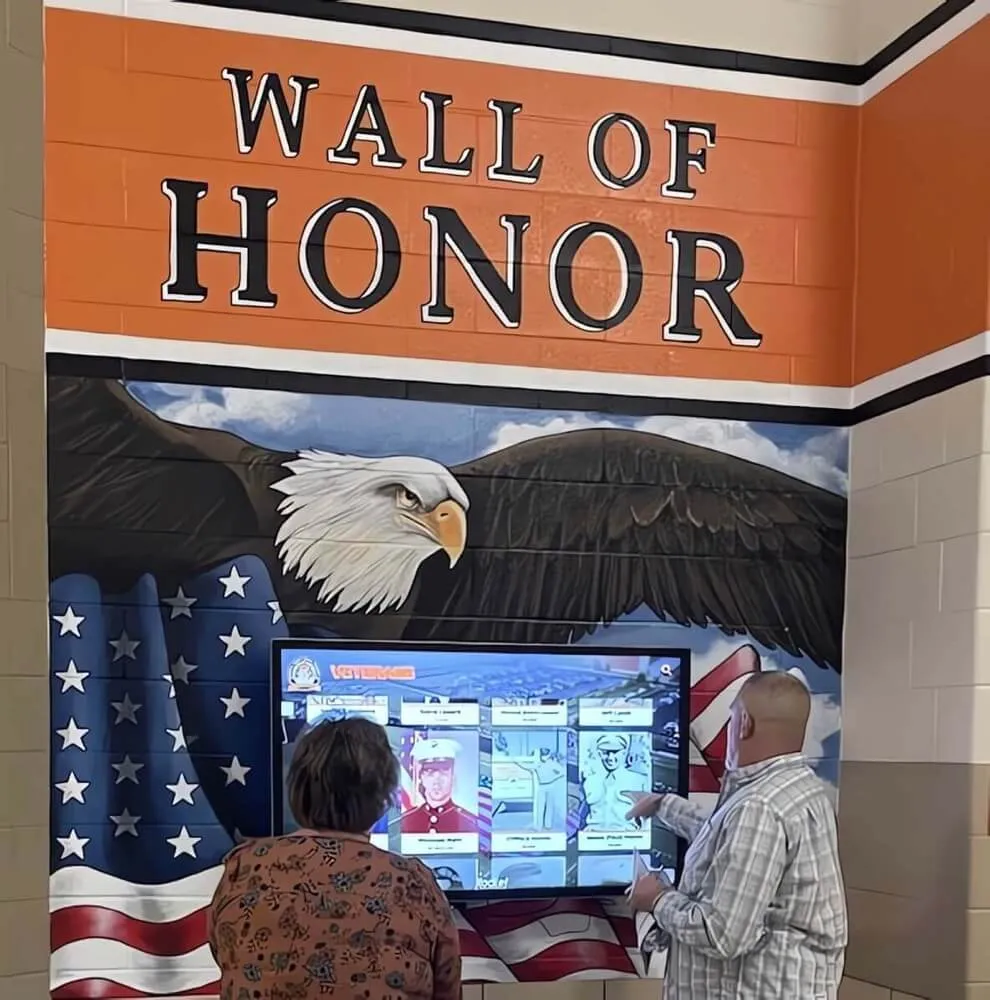
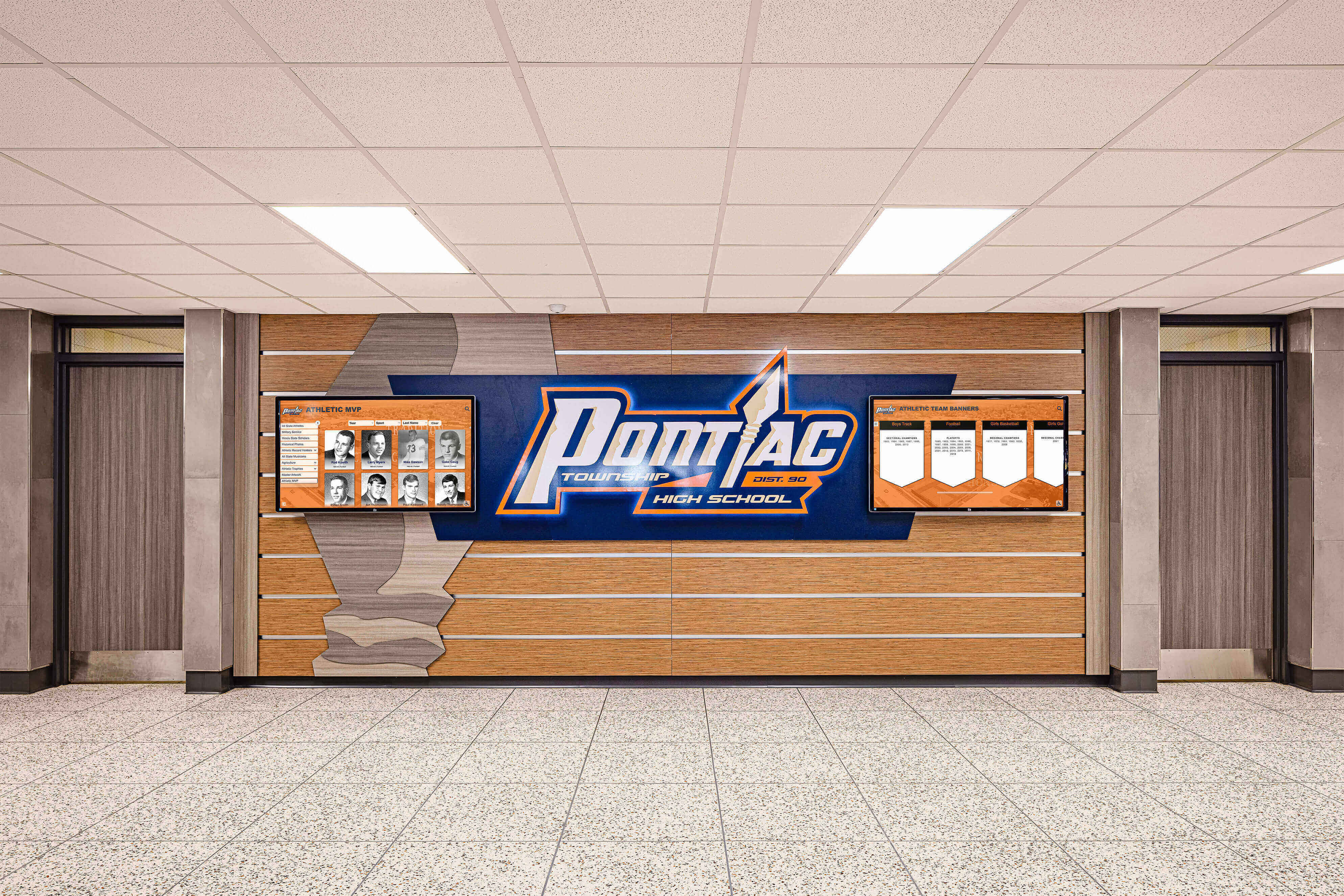
Properly archived yearbook content becomes accessible to visitors through [interactive digital displays](https://toucharchives.org/blog/memorial-plaque-wording-for-schools-honor-teacher-alum-benefactor/?utm_source=organic&utm_medium=seo-auto&utm_content=digitalawardsdisplay&utm_campaign=best-dpi-for-scanning-old-yearbooks&utm_term=seo)
Practical Workflow for School Yearbook Scanning Projects
Institutional yearbook digitization requires project planning balancing thoroughness with available resources.
Project Planning Essentials
Scope Definition
- Inventory all yearbooks to be scanned (years, quantities, condition)
- Establish priority order (often working backward from most recent)
- Determine quality requirements based on intended uses
- Calculate total scanning time and resources needed
- Identify budget for equipment, storage, and labor
Resource Allocation
- Dedicated scanning workstation in controlled environment
- Appropriate scanner meeting specifications discussed earlier
- Sufficient storage capacity for master and derivative files
- Staff time for scanning, quality control, and processing
- Backup systems and infrastructure
Scanning Production Workflow
Efficient workflow maximizes quality while maintaining reasonable production pace:
Daily Production Process
- Prepare workspace and verify scanner calibration
- Organize yearbooks for scanning session
- Scan pages systematically with quality checks
- Perform immediate review and rescan if needed
- Apply post-processing to scanned batches
- Verify file integrity and completeness
- Transfer to storage and backup systems
- Update project tracking and documentation
Quality Control Checkpoints
- Initial test scans to verify settings
- In-process review of random samples
- Final review before archiving masters
- Verification of backup completion
- Periodic audit of stored files
Most school volunteers or staff can scan 100-150 yearbook pages per day including quality control, meaning a 300-page yearbook requires 2-3 days of dedicated scanning work.
Outsourcing vs. In-House Scanning
Institutions should evaluate whether to scan yearbooks internally or contract professional digitization services:
In-House Scanning Advantages
- Lower cost for large collections when staff time is available
- Complete control over quality and procedures
- Flexibility in scheduling and priorities
- Opportunity for volunteer involvement
- Immediate access to scanned files
Professional Service Advantages
- Specialized equipment and expertise
- Much faster completion for large projects
- Consistent quality and standards compliance
- Insurance coverage for valuable materials
- Established workflows and quality assurance
Professional yearbook scanning services typically charge $2-5 per page for high-quality archival scanning including basic processing, making a 300-page yearbook cost $600-1,500 for complete digitization. Schools with extensive collections or limited internal capacity often find professional services cost-effective.
Using Scanned Yearbooks in Modern Digital Recognition
Digitized yearbook content gains new life when integrated into contemporary recognition and alumni engagement platforms.
Digital Display Integration
Scanned yearbooks provide rich content for touchscreen recognition displays:
Display Applications
- Alumni browsing historical yearbook pages and finding classmates
- Automatic connection of yearbook portraits to current donor profiles
- Historical team photographs linking to modern athletic recognition
- “Then and now” comparisons showing institutional evolution
- Interactive timelines incorporating yearbook content
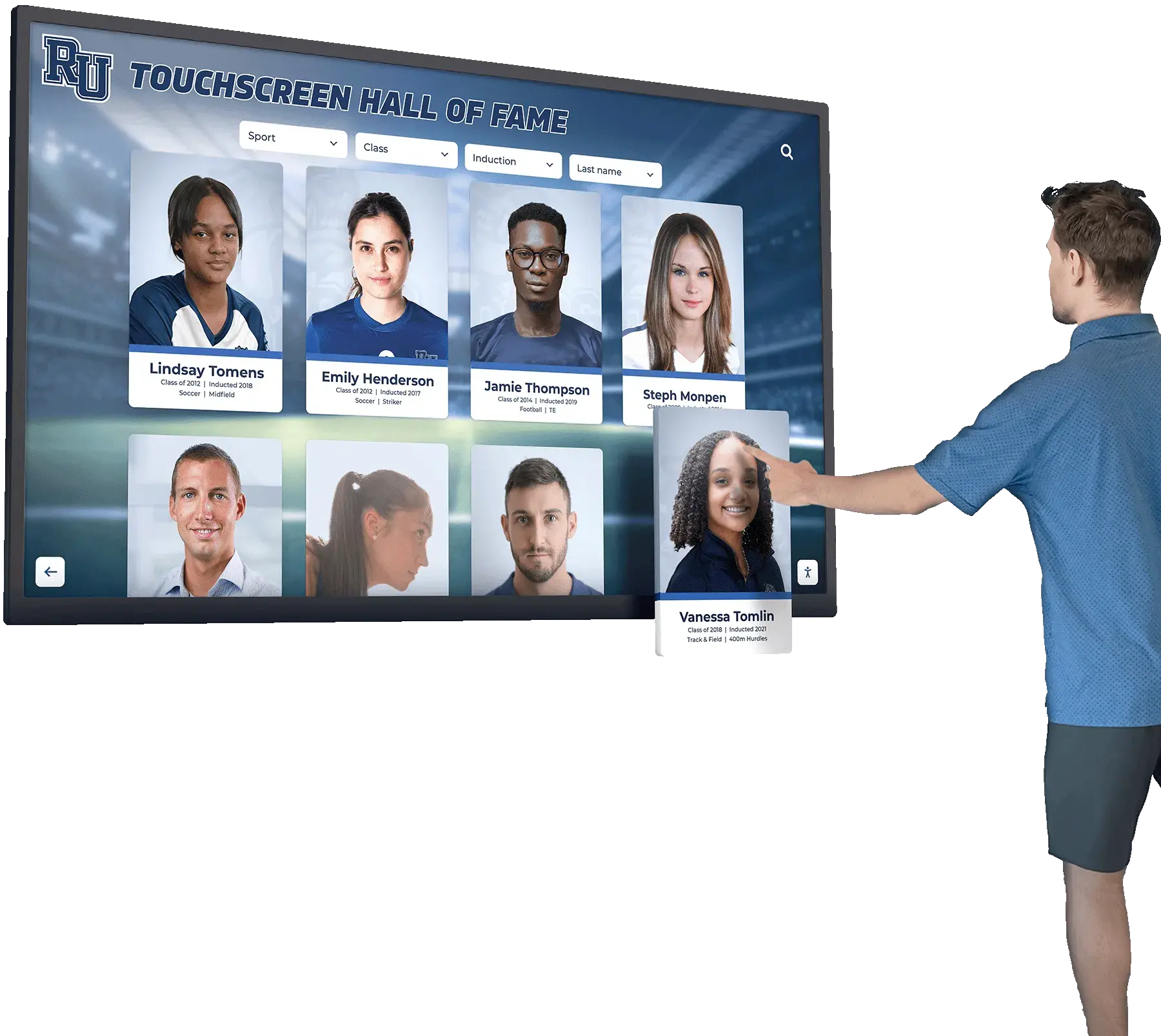
Modern digital recognition walls can display high-resolution yearbook scans with smooth zooming and browsing, creating engaging experiences that connect alumni with their school history.
Senior Recognition Programs
Scanned historical yearbooks enhance senior recognition initiatives by providing context and continuity:
Recognition Enhancement
- Multi-generational family attendance highlighting through yearbook research
- Historical comparison showing how senior traditions have evolved
- Alumni athlete connections to current sports recognition
- Legacy family displays connecting current students to predecessors
- Historical context for school traditions and activities
Alumni Engagement and Fundraising
Digitized yearbooks serve as powerful alumni engagement tools:
Engagement Strategies
- Email campaigns featuring yearbook pages from milestone reunion years
- Social media content highlighting historical photographs
- Online yearbook browsing driving website traffic
- Alumni identification campaigns crowdsourcing names and details
- Fundraising appeals incorporating nostalgic yearbook content
Schools that make digitized yearbooks accessible through online platforms consistently report increased alumni engagement and higher reunion attendance as graduates reconnect with forgotten classmates and memories.
Legal and Ethical Considerations
Yearbook digitization and online sharing involve copyright, privacy, and ethical questions requiring careful consideration.
Copyright Status of Yearbooks
Understanding copyright helps determine what you can legally do with scanned yearbooks:
Institutional Ownership
- Schools typically own copyright to yearbooks they commissioned and paid for
- Student contributions were generally work-for-hire under school direction
- Professional photography may involve separate copyright considerations
- Advertising content retains copyright of original advertisers
Practical Application
- Schools can generally scan and share their own yearbooks freely
- Commercial use or widespread publication may trigger different considerations
- Very old yearbooks (pre-1928) are definitively in public domain
- Consult legal counsel if questions arise about specific content
Privacy and Consent Considerations
Even when copyright permits yearbook sharing, privacy concerns deserve attention:
Student Privacy
- Yearbook publication originally implied consent for that specific use
- Digital republication and online sharing may exceed reasonable expectations
- Minor students may not have had capacity to meaningfully consent
- Contemporary privacy standards differ from past practices
Balanced Approach
- Make recent yearbooks (last 10-20 years) accessible only to verified alumni
- Share older yearbooks more openly as privacy concerns diminish with time
- Honor requests to remove or blur specific individuals
- Avoid facial recognition tagging without explicit consent
- Consider privacy in metadata and searchability design
Most institutions find that historical yearbooks older than 20-30 years can be shared openly without significant privacy concerns, while more recent yearbooks require access controls limiting viewing to verified community members.
Frequently Asked Questions
What is the best DPI for scanning old yearbooks?
The best DPI for scanning old yearbooks is 600 DPI for archival master files, which captures fine details including halftone printing patterns while creating manageable file sizes averaging 30-50 MB per page. This resolution exceeds the 400 DPI minimum recommended by archival standards and allows you to create lower-resolution derivatives for different purposes without needing to rescan. For web display and general access, 300 DPI provides excellent quality with smaller files, while OCR text recognition works best at 400-600 DPI depending on print quality.
Should I scan yearbooks in color or black and white?
Always scan yearbooks in color even if the original appears black and white, using at least 24-bit color depth. Color scanning captures paper aging, staining, and subtle tone variations that provide historical evidence and allow better future enhancement through post-processing. Color scans preserve the yearbook’s actual appearance at the time of digitization and enable extracting maximum detail through color channel separation. The file size difference between grayscale and color is minimal when proper compression is used, making color the better archival choice.
What file format should I use for scanned yearbooks?
Use uncompressed or lossless-compressed TIFF format for archival master files to preserve maximum quality and ensure long-term preservation standards. For access copies and sharing, convert to high-quality JPEG (quality 90-95) to reduce file sizes by 85-95% while maintaining excellent visual quality. Many institutions also create PDF documents combining all yearbook pages into single files with embedded OCR text layers, making content searchable while providing convenient book-like browsing on any device.
How long does it take to scan an entire yearbook?
Most people can scan 100-150 yearbook pages per day including quality control checks, meaning a typical 300-page yearbook requires 2-3 days of dedicated scanning work. Time requirements vary based on yearbook size, scanner speed, quality control thoroughness, and post-processing needs. Professional digitization services can complete yearbooks much faster using specialized equipment but typically charge $2-5 per page. For schools with extensive collections spanning decades, professional services often provide faster completion despite higher cost.
Can scanned yearbooks be used in digital recognition displays?
Yes, scanned yearbooks provide excellent content for modern digital recognition displays and interactive touchscreens when scanned at appropriate resolution. Files scanned at 300-600 DPI display beautifully on high-resolution screens and support smooth zooming to view individual photographs and details. Digitized yearbook content can connect historical portraits to current donor profiles, show multi-generational family attendance, provide context for school traditions, and create engaging alumni experiences that bridge past and present through interactive displays.
Conclusion: Preserving School History Through Proper Digitization
Old yearbooks represent irreplaceable institutional memory documenting student experiences, community traditions, and historical evolution that deserve preservation for future generations. Scanning these valuable volumes at proper archival quality—600 DPI in color using TIFF format for masters—ensures digital copies capture every meaningful detail while remaining practical for storage, backup, and long-term access.
The technical specifications and workflows explored in this guide provide comprehensive frameworks for yearbook digitization projects that balance preservation requirements against real-world resource constraints. From scanner selection and file format choices to post-processing approaches and backup strategies, these recommendations reflect archival best practices adapted for institutional settings.
Transform Your School Archives into Interactive Digital Experiences
Discover how Rocket Alumni Solutions can help you bring digitized yearbooks to life through modern touchscreen displays, creating engaging recognition experiences that connect alumni with school history and build lasting community engagement.
Explore Digital Recognition SolutionsBeyond technical preservation, the real value of yearbook scanning emerges when digitized content becomes accessible and integrated into contemporary school life. Digital recognition displays, online archives, alumni engagement platforms, and fundraising initiatives all benefit from high-quality scanned yearbook content that connects current community members with institutional heritage.
Start your yearbook scanning project by inventorying your collection, establishing priority order, and securing appropriate scanning equipment or professional services. Focus on creating proper archival masters at 600 DPI that will serve all future needs, then generate derivatives optimized for different purposes from those masters. With systematic approaches and appropriate quality standards, you can preserve your school’s yearbook collection while making this historical treasure accessible to generations that never experienced the physical volumes.
Your institution’s yearbooks contain stories, faces, and moments that define your community’s shared history. Proper digitization ensures these memories remain vivid and accessible long after the physical volumes have deteriorated—preserving the past while creating new opportunities for connection, recognition, and community building in the digital age.