



Intent: research/decide. Interactive touch screen digital signage lets visitors tap, swipe, and search directly on a display rather than simply watching it — and that single difference changes how schools, athletic departments, and organizations approach everything from trophy cases to campus directories.
This guide covers the mechanics behind touchscreen hardware, the software and infrastructure you need to run a display dependably, and the practical planning decisions that determine whether a system performs well for years or causes ongoing headaches. Whether you’re evaluating a single kiosk for a school lobby or a multi-screen recognition wall for an athletics facility, the information here will help you ask the right questions and make the right choice.

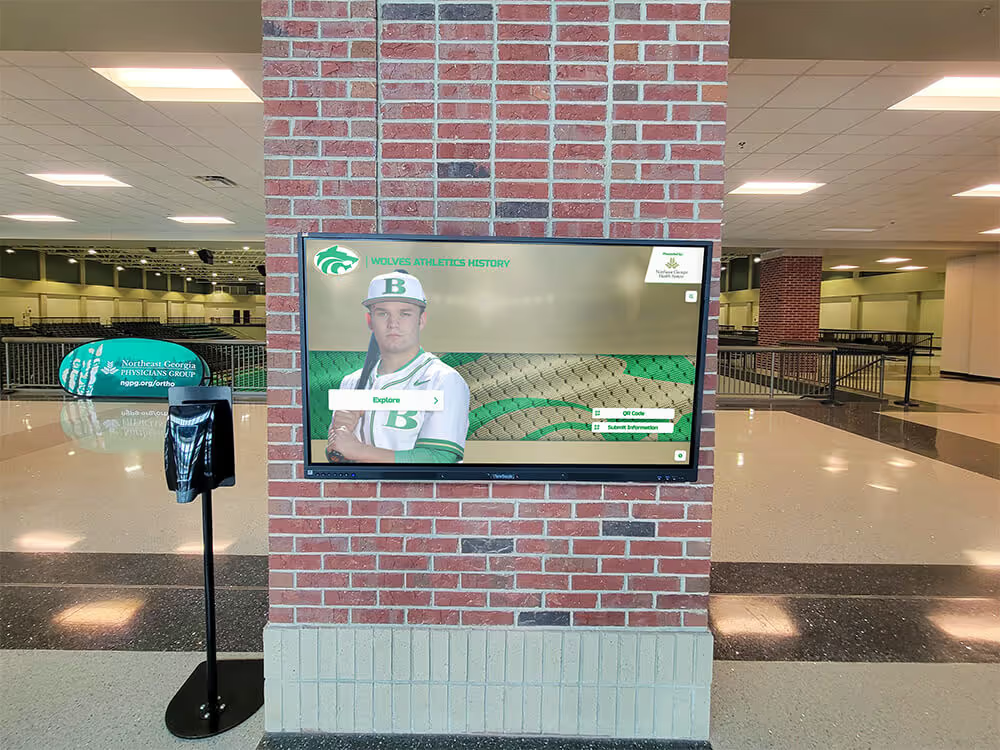
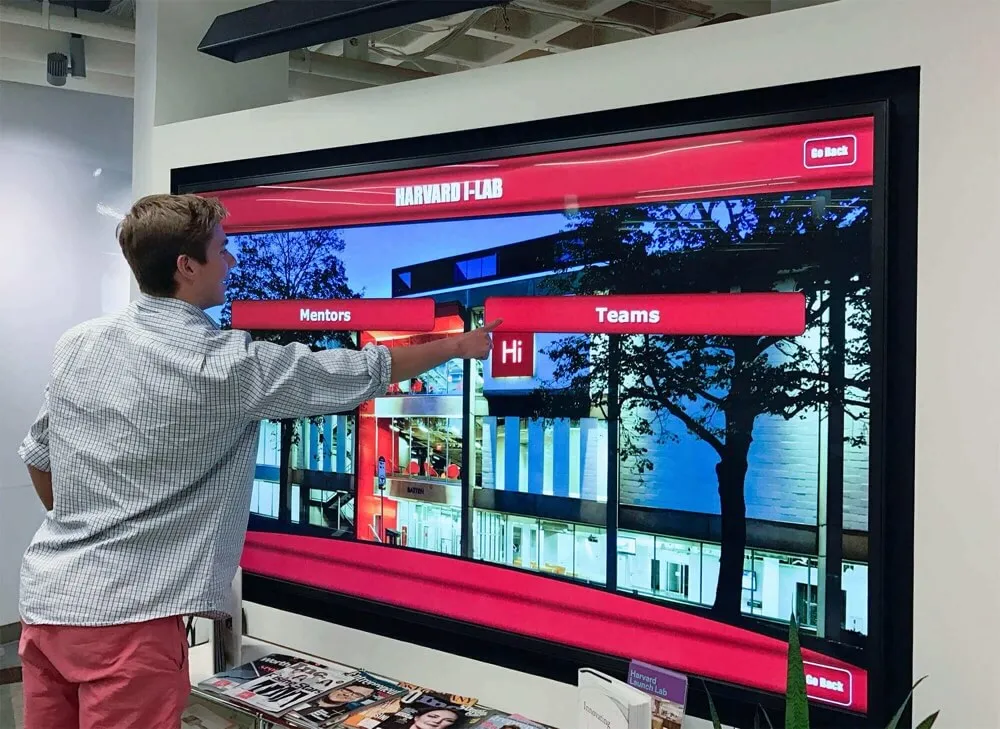
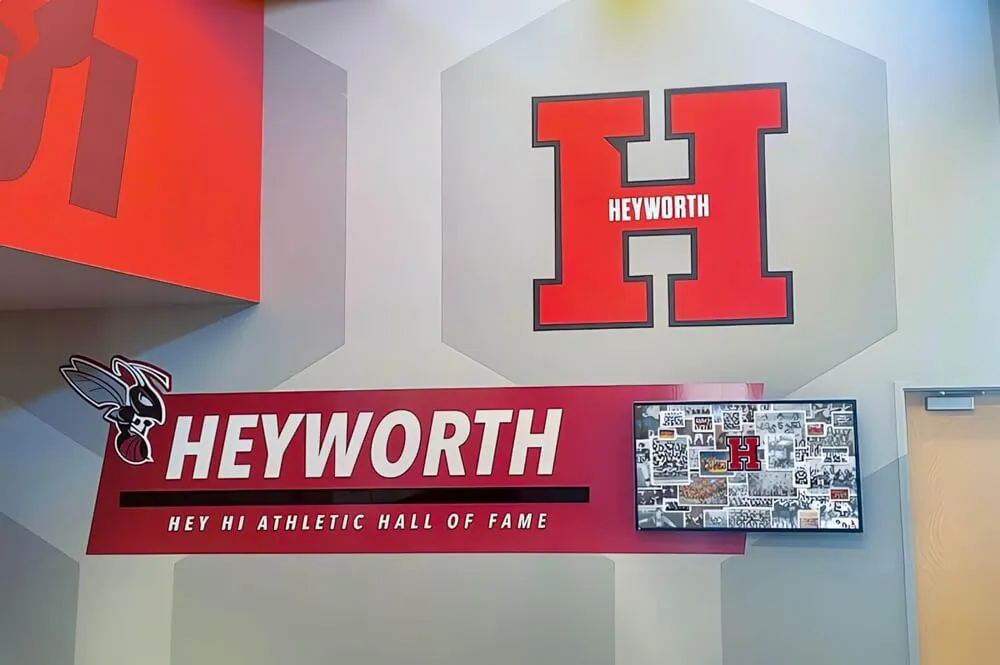
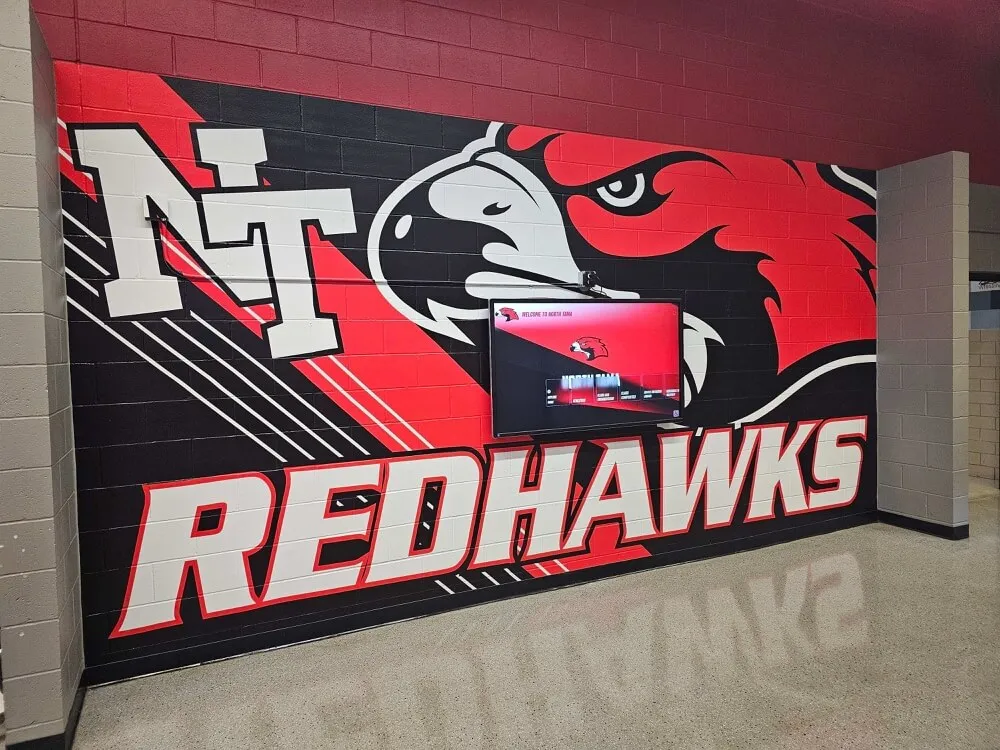
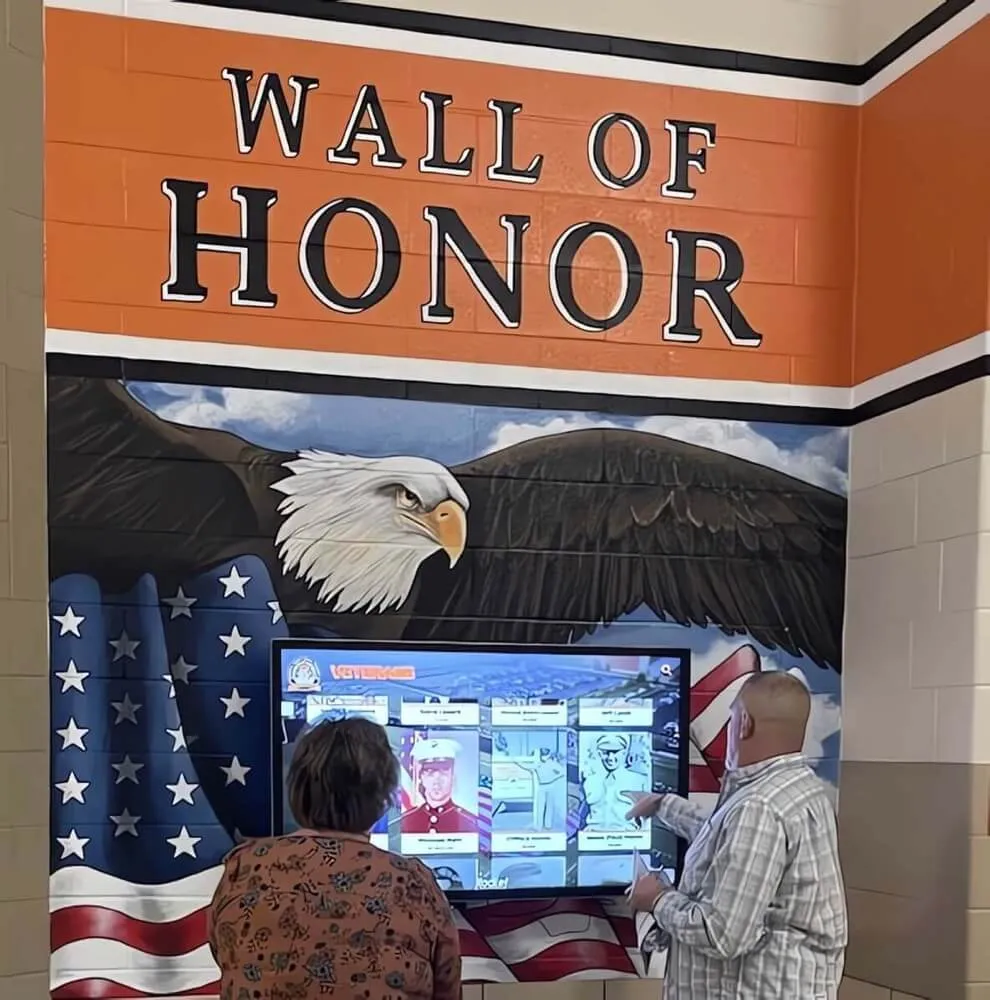
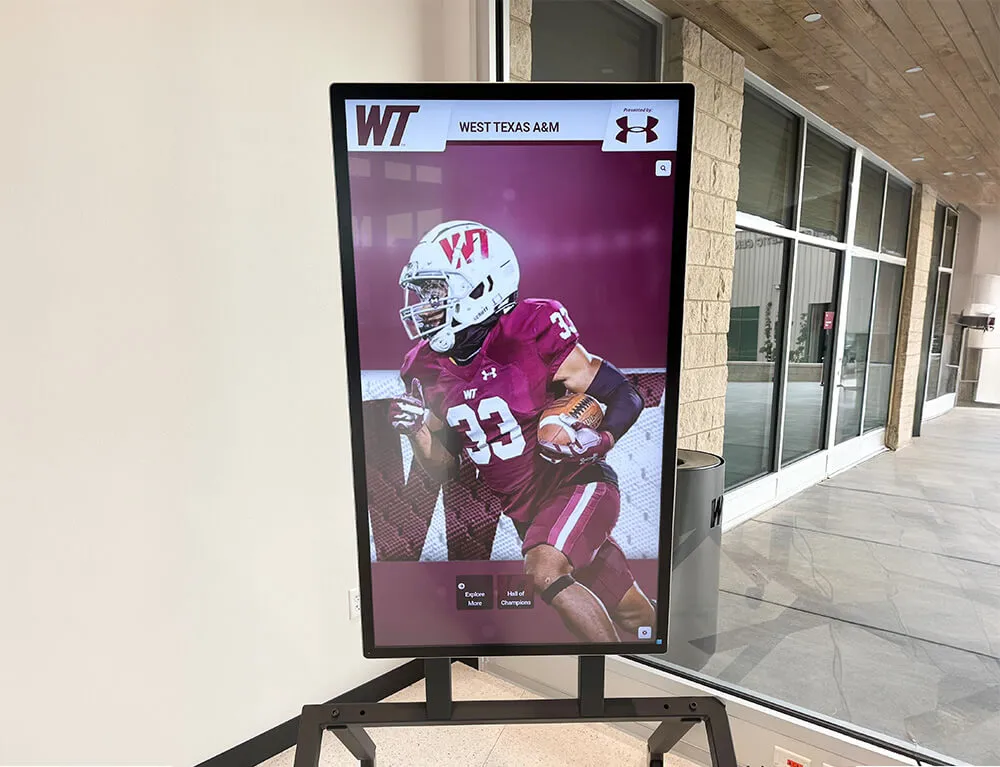
Interactive touch screen displays engage visitors directly — instead of watching content scroll by, users navigate to exactly what they want to see
What Is Interactive Touch Screen Digital Signage?
Interactive touch screen digital signage is a display system that responds to direct touch input from the people viewing it. Unlike a standard digital sign — which broadcasts content on a programmed loop and requires no interaction — an interactive display gives visitors control. They can navigate menus, search a directory, browse profiles, watch video highlights, or access specific information on demand.
This category covers a wide range of hardware configurations: freestanding kiosks, wall-mounted panels, large-format multi-touch walls, and dual-screen stations. The unifying element is touch input that drives the software running on the display.
For schools and recognition-focused organizations, the distinction between passive and interactive matters in practice. A passive display can show a rotating slideshow of athletic records. An interactive one lets a visitor search for a specific athlete by name, filter results by sport or graduation year, view career statistics, and watch a video highlight — all from the same screen. That depth of access justifies the additional investment in hardware and software.
The full range of digital signage for schools includes both passive and interactive formats; most schools that start with passive signage eventually add interactive capabilities once they see the engagement difference.
How Touchscreen Technology Actually Works
Not all touchscreens operate the same way. Understanding the underlying technology helps you evaluate hardware specifications accurately and choose the right panel type for your environment.
Projected Capacitive (PCAP) Touchscreens
PCAP technology is what powers most modern smartphones and tablets, and it is now the standard for commercial interactive signage in the 32-to-65-inch range. A PCAP panel uses a grid of transparent electrodes embedded behind the glass surface. When a fingertip — or any conductive object — makes contact with the panel, it disrupts the electrical field at that point. The controller maps that disruption to screen coordinates and passes the input to the running application.
PCAP panels support true multi-touch, meaning they register multiple simultaneous contact points. This allows gestures like pinch-to-zoom and two-finger swipes. They are accurate, wear well under daily public use, and function cleanly through protective glass overlays. Most commercial-grade interactive displays sold for education and public-space use today use PCAP technology.
Infrared (IR) Grid Touchscreens
IR touch panels work on a different principle. A frame mounted around the display edge contains LED emitters and matching receivers that project a dense grid of invisible infrared beams across the screen surface. When a finger or object interrupts those beams, the controller triangulates the contact position from the intersection of broken beams.
IR technology responds to any object — gloved hands, styluses, pointers — which makes it useful in environments where bare-finger contact isn’t always possible. It also works well at very large display sizes where PCAP overlays become costly. The tradeoff: IR panels can register phantom inputs if dirt or liquid accumulates on the frame sensors, so the installation environment matters. Displays located in dusty gymnasiums or near exterior doors require more frequent frame cleaning.
Acoustic Pulse Recognition
Some large-format displays use acoustic sensors placed at the corners of the glass. When a user touches the surface, the contact creates small acoustic waves that travel through the glass. The sensors detect those waves and calculate contact position based on their relative arrival times. This technology works with any touch object and performs well on large surfaces, but it is less common in standard commercial signage than PCAP or IR.
For most school and recognition display applications — lobby kiosks, athletic hall of fame walls, donor recognition panels — PCAP panels in the 43-to-65-inch range offer the best combination of accuracy, durability, and per-unit cost.
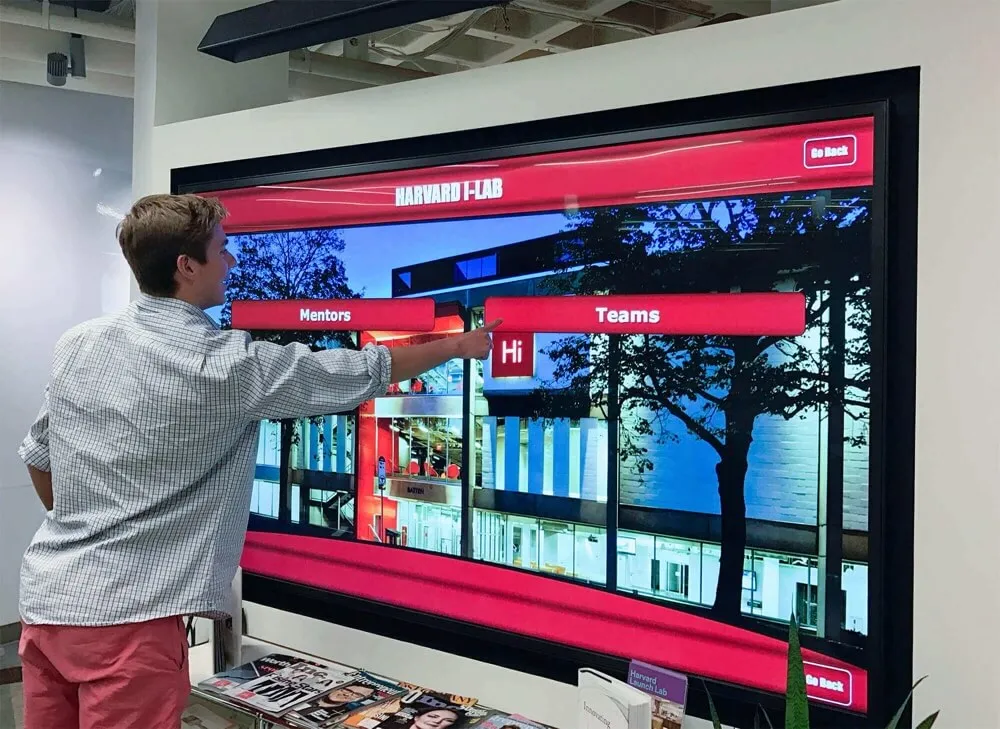
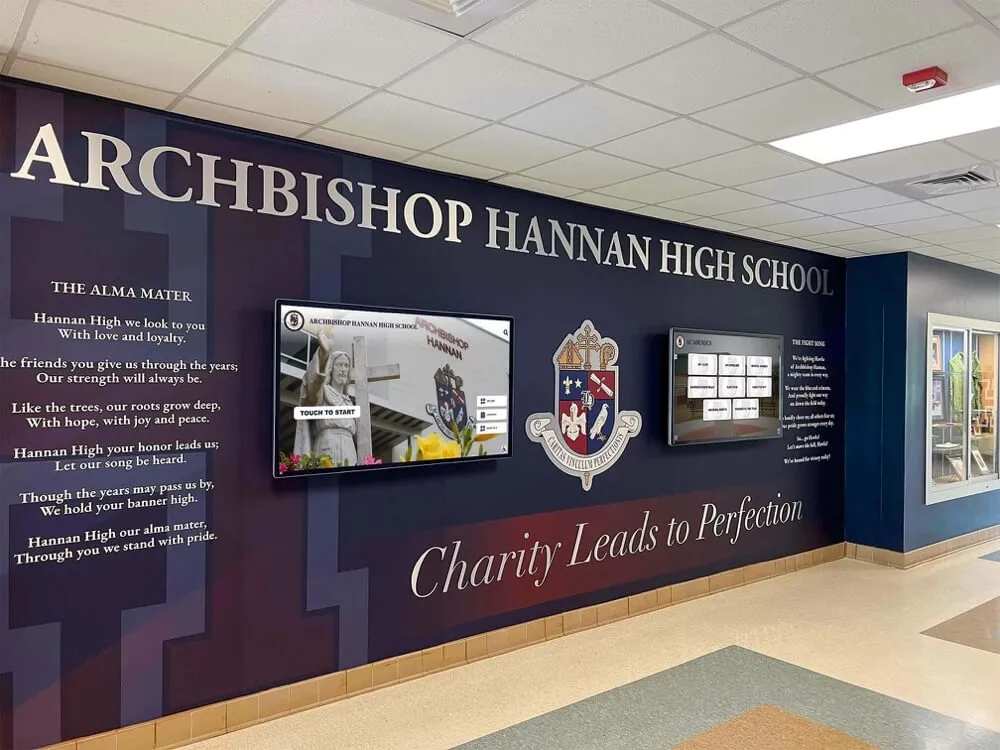
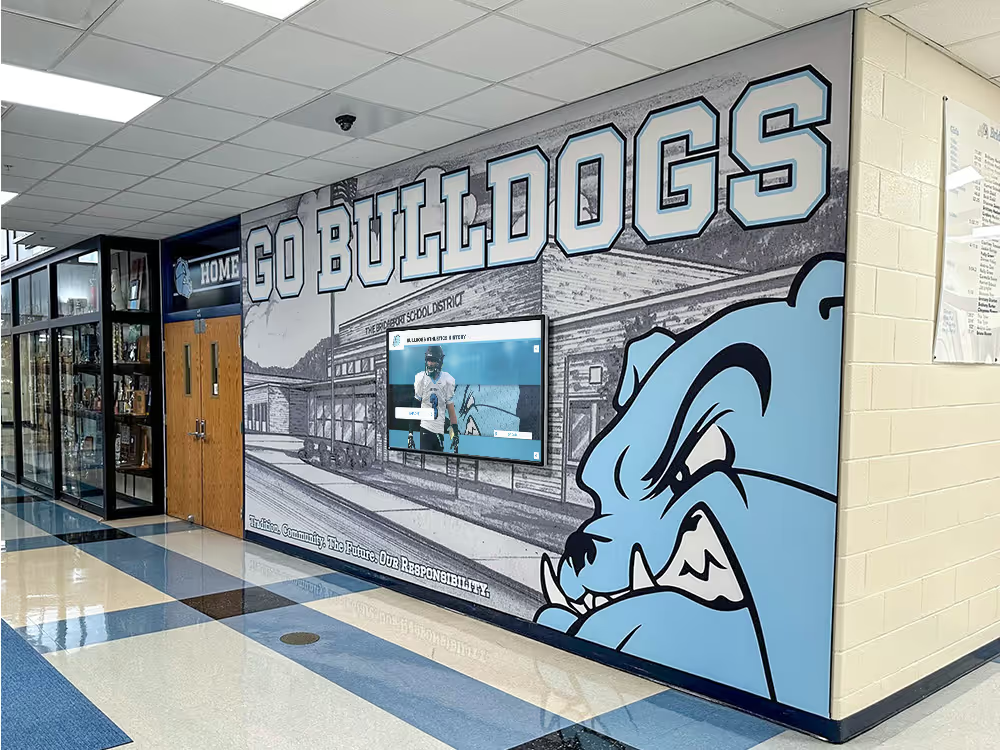
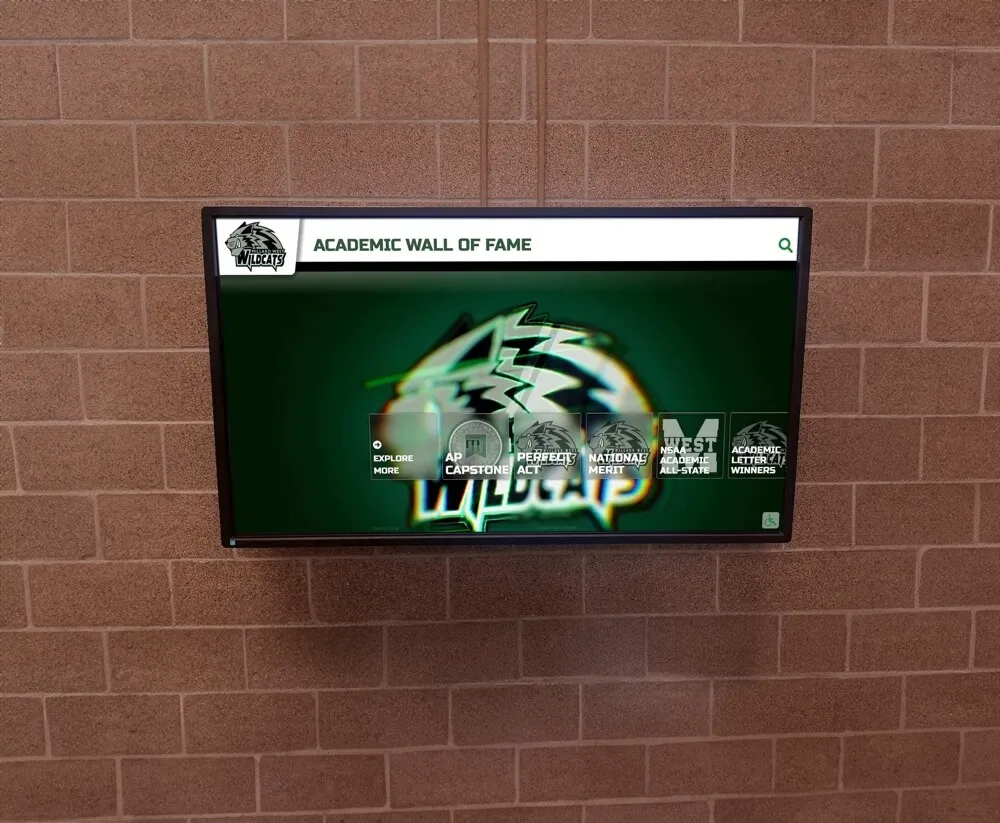
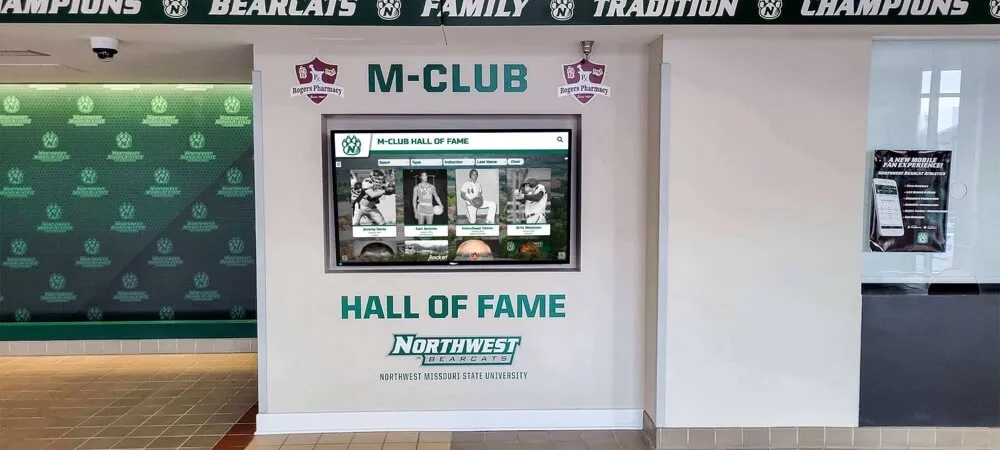
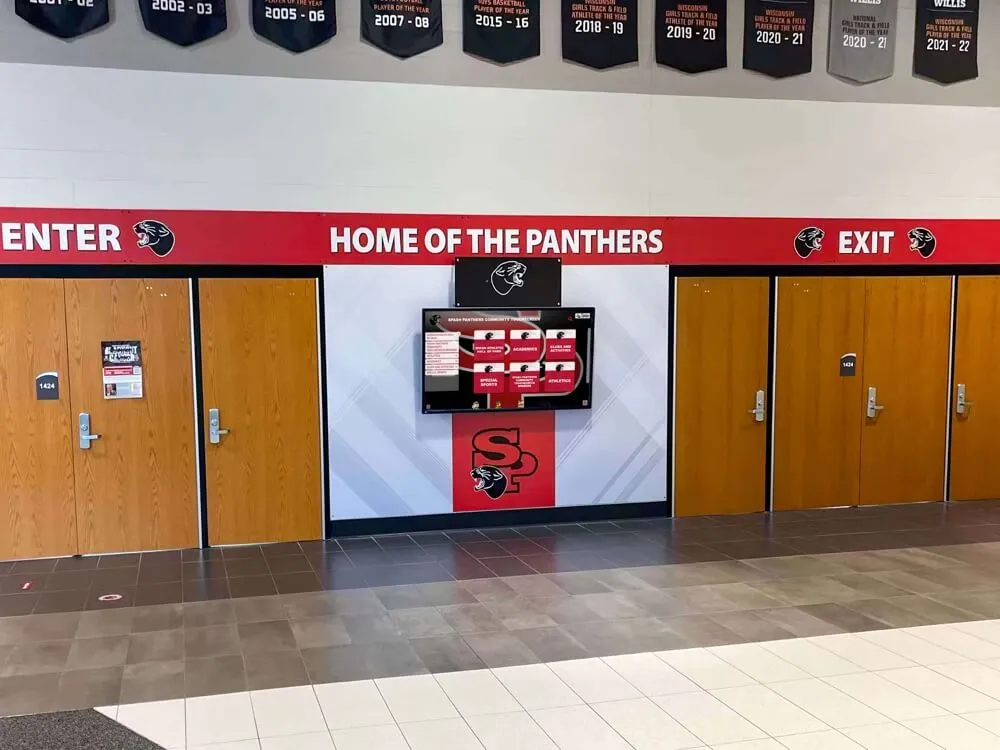
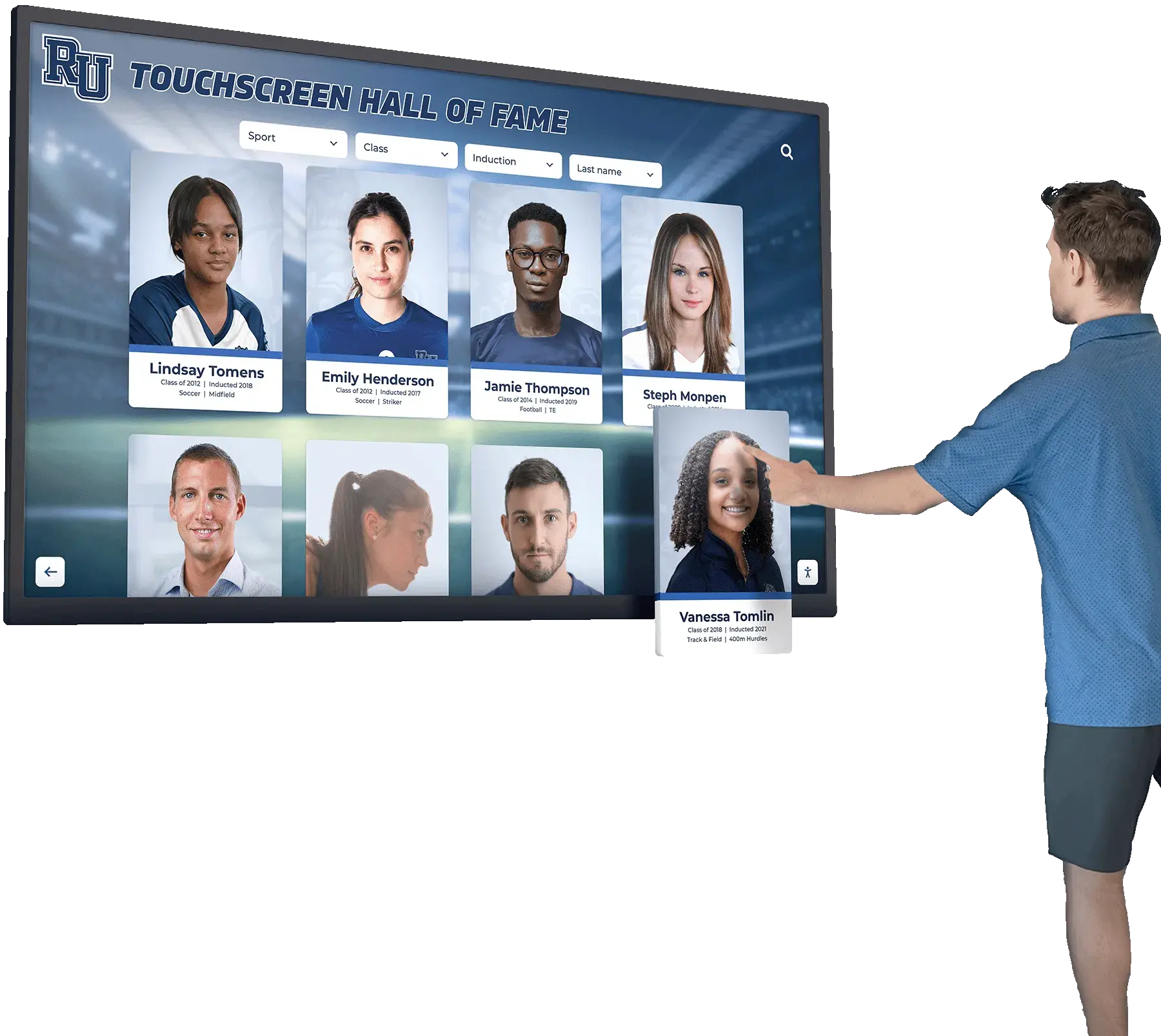
Well-designed touchscreen interfaces organize content into clear categories that visitors can navigate without instruction
The Three Core Components You Actually Need
Every functional interactive touch screen signage system has three layers: hardware, computing, and software. A gap in any one of them creates problems that are difficult to fix after installation.
1. Display Hardware
The display panel is the most visible component, but it is not the only hardware decision. Key specifications to evaluate before purchasing:
Panel brightness. Commercial displays rated at 400–700 nits work well in most indoor environments. Lobbies with significant natural light — south-facing windows, skylights — may require 700+ nits to remain readable in direct sun. Consumer televisions are not designed for continuous commercial operation and will degrade faster than commercial-grade panels under daily public use.
Touch overlay quality. Confirm that the touch overlay is rated for commercial public use — typically 50 to 100 million touch-point activations over the display’s life. Look for anti-glare coating and tempered safety glass on panels that will be in reach of the general public.
Screen size and resolution. Single-kiosk recognition displays work well at 43 to 65 inches with 1080p or 4K resolution. Multi-screen walls may use tiled commercial displays or purpose-built video wall arrays. Larger is not always better — the right size depends on viewing distance and the layout of the installation space.
Mounting hardware. VESA-compatible mounts, flush-wall mounts, and freestanding floor stands each require different structural preparation. Confirm weight ratings and required wall-backing material before finalizing the installation design. Concrete and CMU walls require anchor bolts; standard drywall may need blocking added to the stud cavity.
2. Computing Device
The display needs a dedicated computing device to run the interactive software. Options include:
System-on-Chip (SoC) displays. Some commercial panels include an Android-based computer built into the display chassis. These simplify cabling but may have processing or storage limitations that affect performance with high-resolution photo archives and video content.
Mini PCs or media players. A dedicated Windows or Android mini-PC connected to the display provides more consistent performance and easier serviceability. The computing device can be mounted in the display cabinet or affixed behind the panel.
Cloud-managed media players. These connect to the display and run content managed through a web-based CMS. All content processing happens through the cloud service, and the local device handles only playback. This model is common for recognition systems where content updates are handled by non-technical staff.
For recognition displays that include high-resolution photos, search functionality, and video content, a dedicated computing device generally provides better performance than SoC-only solutions.
3. Software and Content Management System
The software determines your day-to-day experience with the display — and it is where most buying decisions go wrong. Evaluate software on these criteria before committing:
CMS accessibility. Staff who manage the display — athletic directors, administrative assistants, communications coordinators — should be able to add content, update records, and publish changes without IT involvement. A browser-based CMS that works from any computer on any network is the right standard.
Interactive application depth. Confirm the software supports the specific interactions your use case requires: search by name and category, filtering, video playback, profile detail pages, and any custom navigation your content demands.
Remote management. The ability to push content updates without physical access to the display saves significant time over the system’s life. A display mounted in a locked corridor or accessible only during school hours needs remote control capability.
Offline behavior. Ask how the system handles network outages. Does it continue displaying cached content, or does it show a blank screen or error message? Offline mode is important for public-facing displays.
For a detailed look at what separates leading platforms when comparing interactive software, see this interactive touchscreen software complete guide.
Planning Your Installation: Key Decisions Before You Buy
Hardware and software are only part of the picture. The most important decisions happen before any product is ordered.
Location and Environment
Where the display will live determines nearly every hardware specification.
Ambient light. Measure actual lux levels at the installation point during peak hours before specifying brightness. A south-facing lobby with large windows needs a high-brightness panel; a windowless trophy corridor can use a standard commercial display.
Traffic flow. Displays positioned in main entry corridors receive more incidental engagement than those placed in side hallways. Higher-traffic locations justify greater investment in display size and durability. They also require more frequent content updates to stay relevant to repeat viewers.
Wall construction. Know your wall type before finalizing mounting specifications. Concrete and CMU block require anchor bolts and may need a wall plate. Standard drywall needs wood blocking or a structural backing board added before a heavy display can be mounted. Surprises at installation time cost money and delay go-live dates.
Temperature and humidity. Exterior-facing walls, areas near frequently used exterior doors, and spaces without consistent climate control can experience temperature swings that affect both display panels and touch sensors. Verify the operating temperature range of your chosen hardware against the actual conditions at the installation site.
Screen Size and Orientation
A general planning rule: display height in inches divided by 6 gives the minimum comfortable viewing distance in feet. A 55-inch display works well at about 9 feet of viewing distance; a 65-inch display is most readable at 11 feet or more.
Portrait vs. landscape. Kiosks designed for browse-and-search interactions often work better in portrait orientation, which reflects the phone experience most visitors bring to the interaction. Landscape orientation works well for content that includes wide video, record boards, or side-by-side comparisons.
Network and Power Requirements
Interactive displays need consistent network connectivity. Decide early whether the installation will use wired Ethernet or Wi-Fi.
Wired Ethernet is strongly preferred for permanent public-facing displays. It provides consistent throughput, avoids wireless interference, and eliminates the recurring management task of updating Wi-Fi credentials when network passwords change. Running a CAT6 line during a construction or renovation project costs far less than adding it after walls are closed.
Wi-Fi is workable when cabling is not possible. Use a dedicated access point within line-of-sight of the display location, and confirm actual signal strength at the display mount point — not just in the general hallway. Shared building Wi-Fi networks are frequently unreliable for permanent commercial display use.
Power. Most displays require a standard 120V outlet within cable reach of the mount location. Plan outlet placement before finalizing the wall mount position. Floor-mounted kiosks may require conduit runs for both power and data.
For additional guidance on how schools approach lobby placement and power planning, see this resource on school lobby digital signage.
Content and Interactivity Level
Clarify exactly what the display will show and how visitors will interact with it before evaluating any software. These questions should drive your selection:
- What types of content: profiles, athletic records, videos, maps, event schedules, donor lists?
- How many individual records or entries will the database hold at launch — and in five years?
- How often will content be updated, and which staff member will own that responsibility?
- Does the display need to operate in offline mode when the network is unavailable?
- Does the display need to connect to any existing systems — a student information database, an athletic records platform, a donor management tool?
Answering these questions before product selection avoids the common problem of buying a system and then discovering it cannot support your actual content requirements.
Interactive Signage Use Cases for Schools and Organizations
Interactive touch screen displays serve different purposes depending on where they’re installed and what content they hold. These are the most common applications in school and institution settings.
Athletic Halls of Fame and Recognition Displays
This is one of the most common applications in K-12 and collegiate settings. A touchscreen display replaces or supplements a physical trophy case with a searchable archive of inducted athletes, championship records, and season-by-season histories.
Visitors can search by name, browse by sport or year, view photos and video highlights, and access records that would never fit on a physical wall. Schools with 30, 40, or 50 years of athletic history can present that entire archive on a single display. For a detailed look at how these installations work, see this overview of touch kiosk hall of fame implementations.
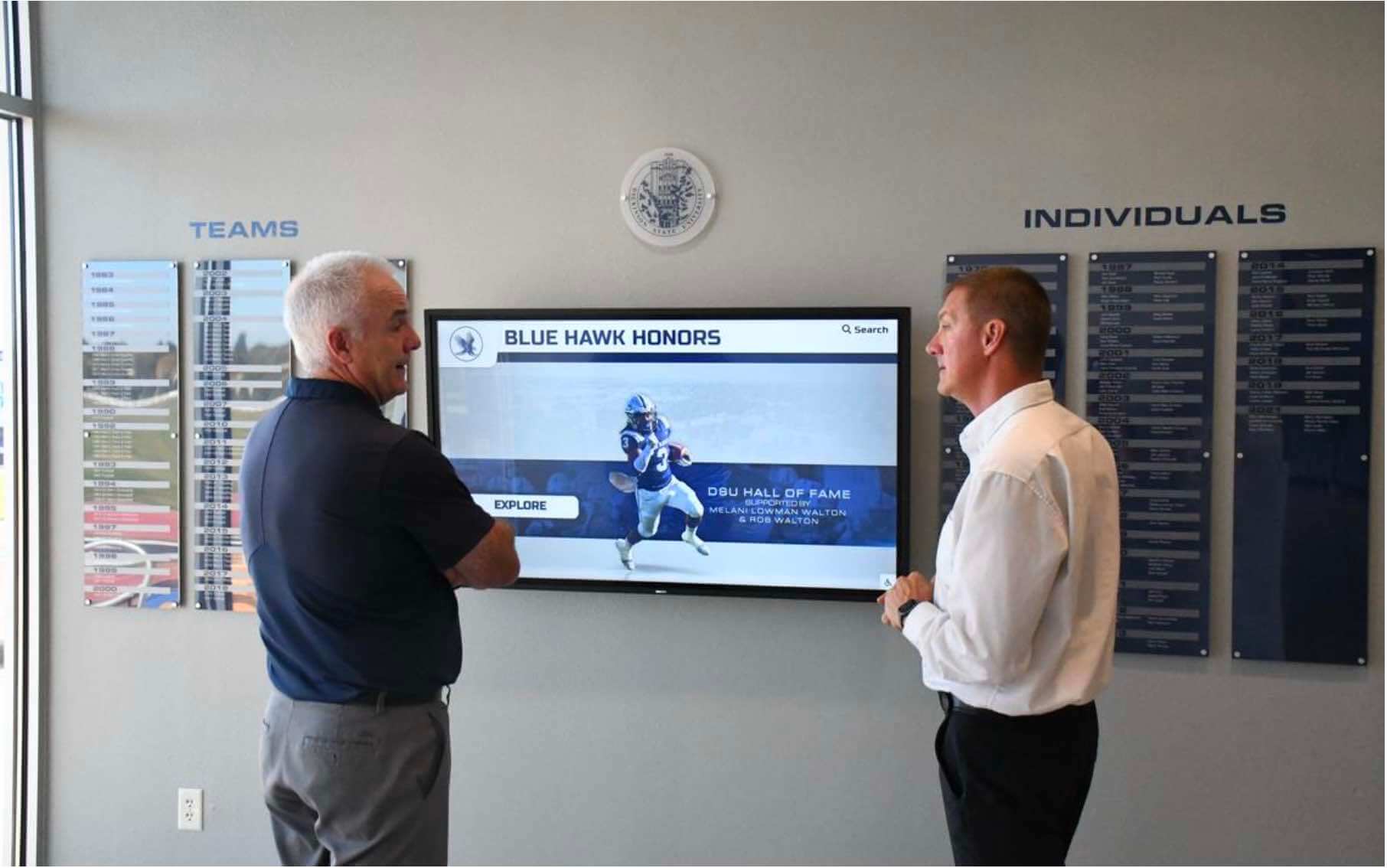
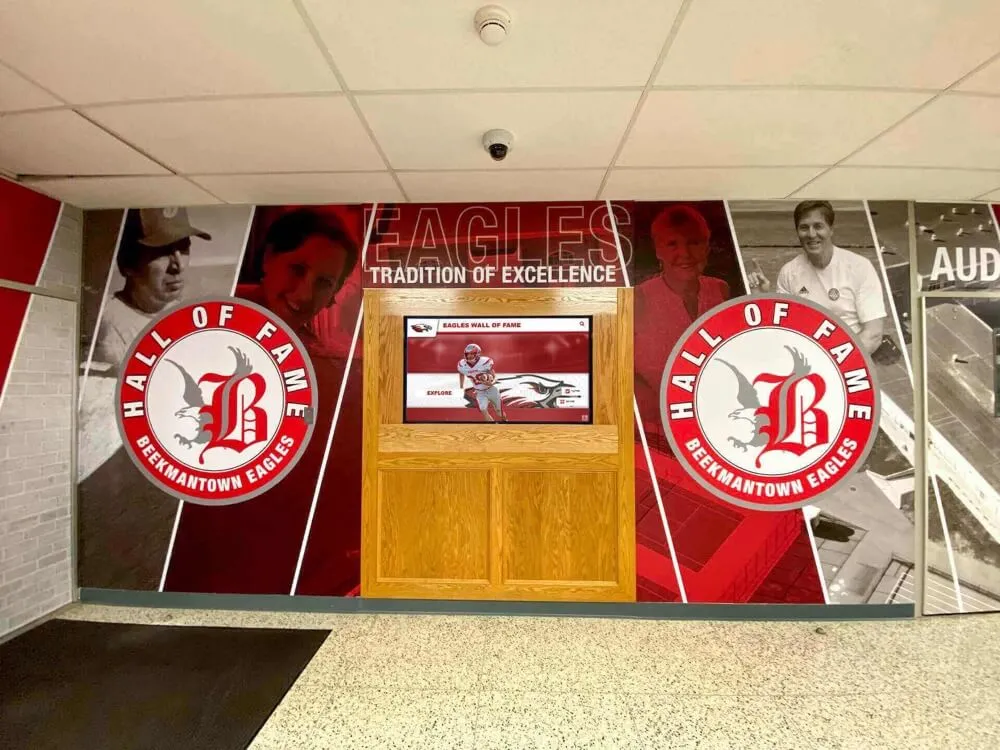
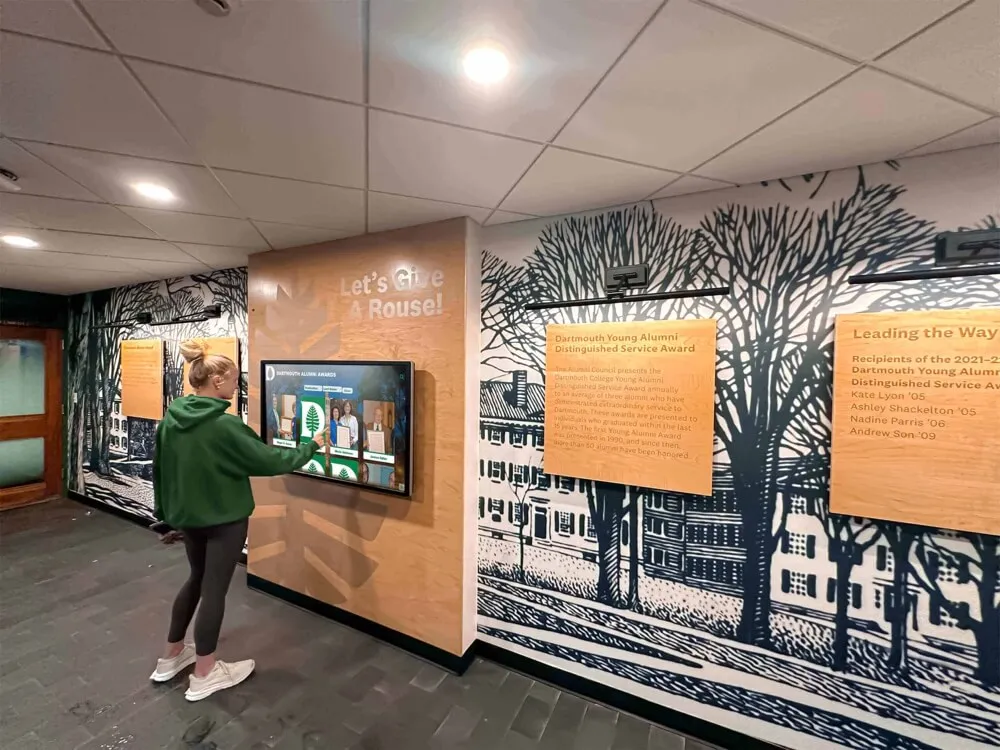
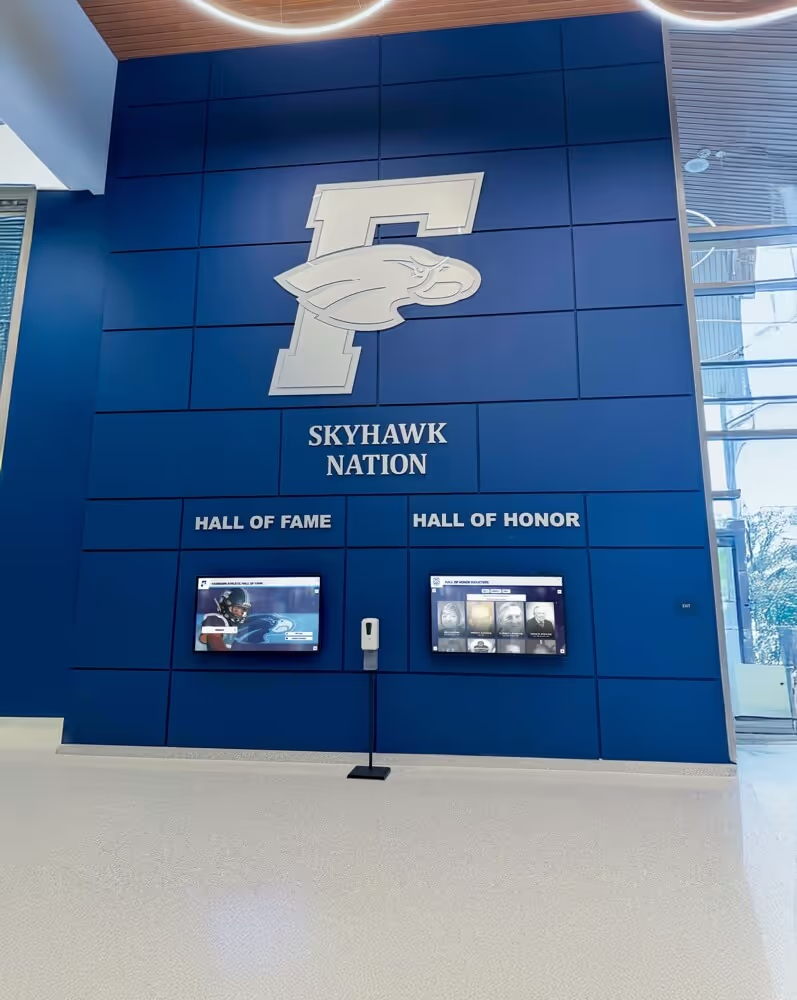
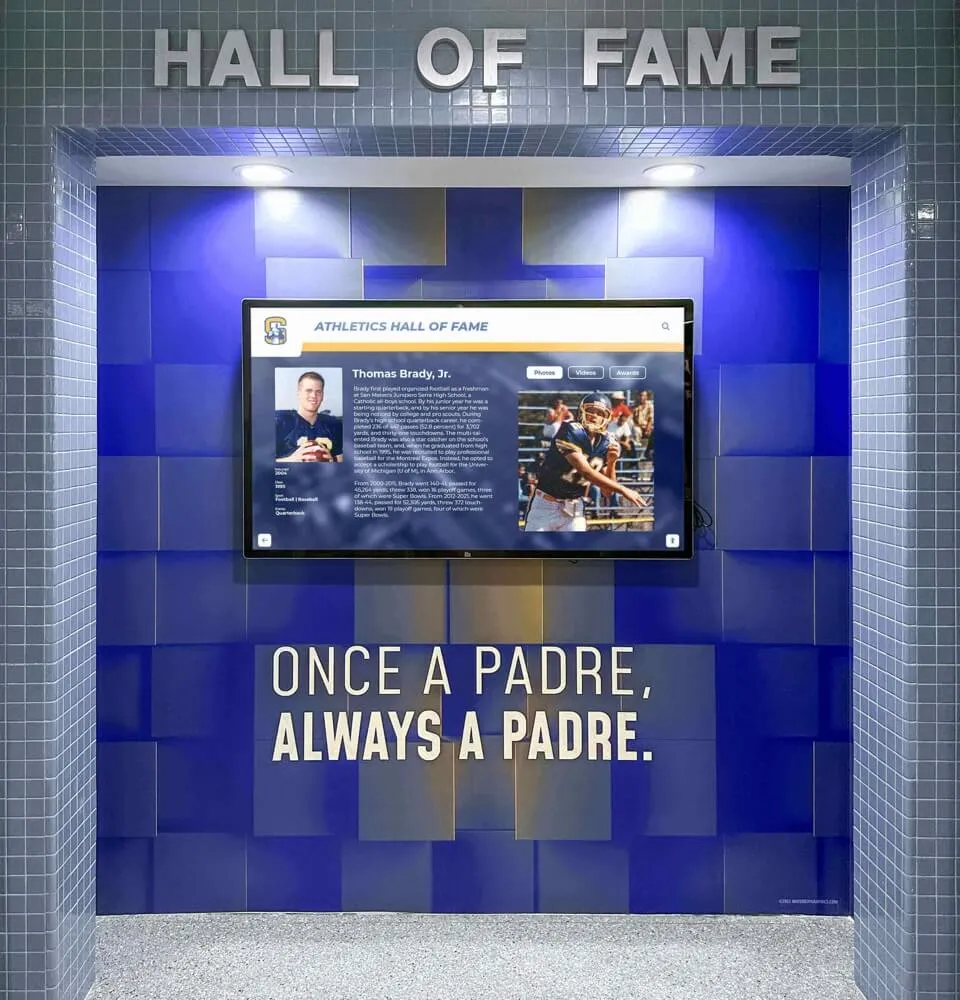
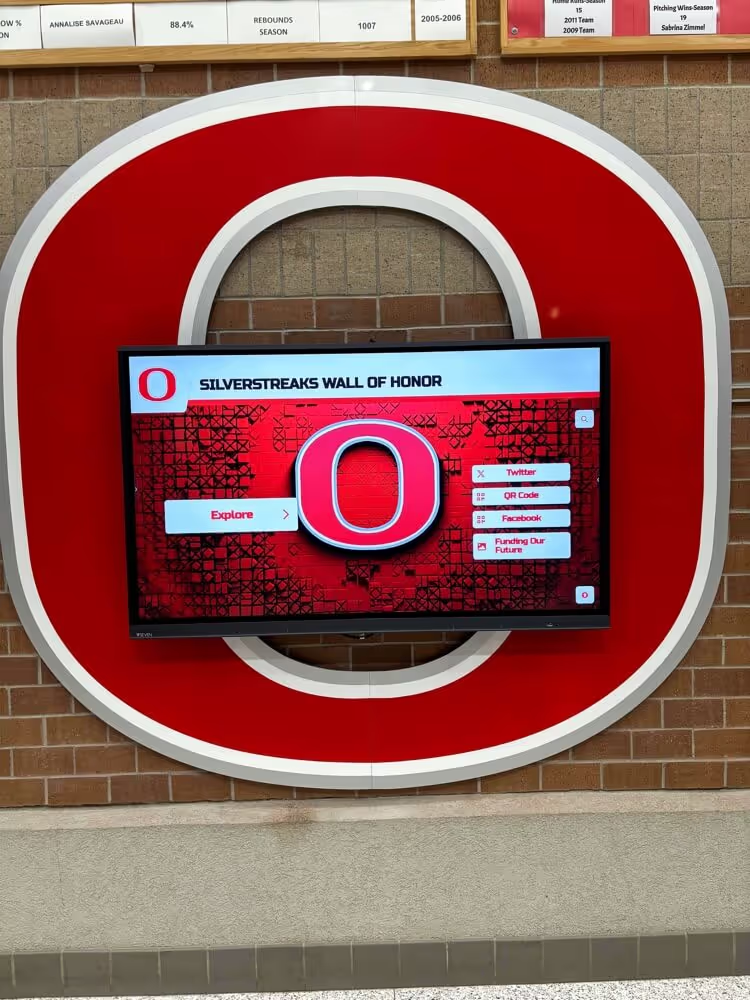
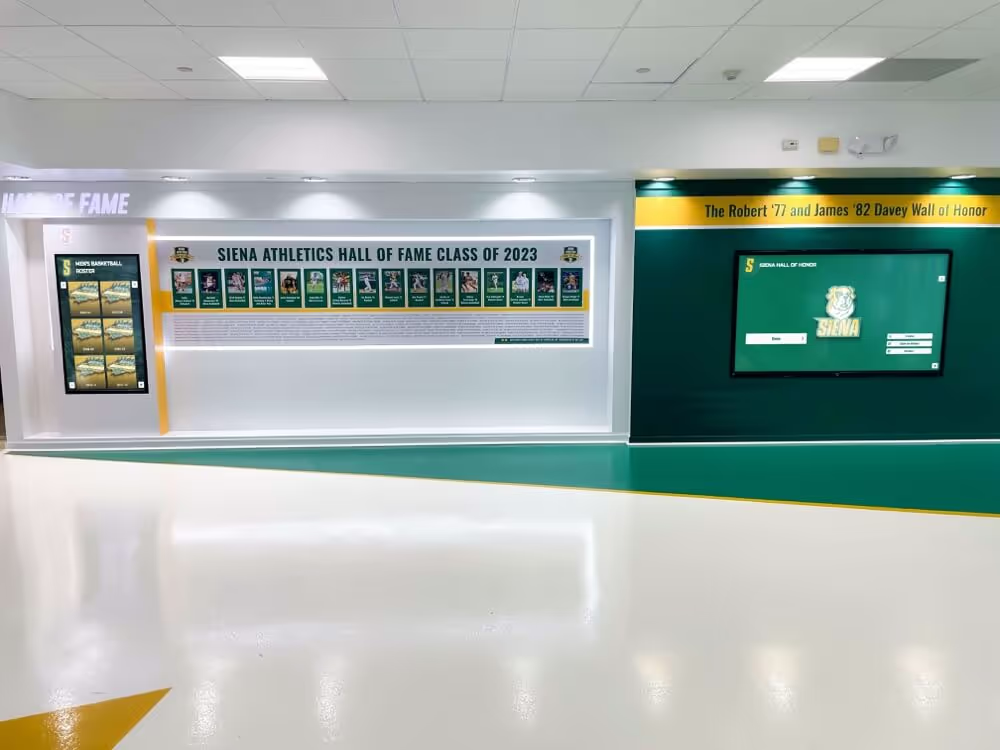
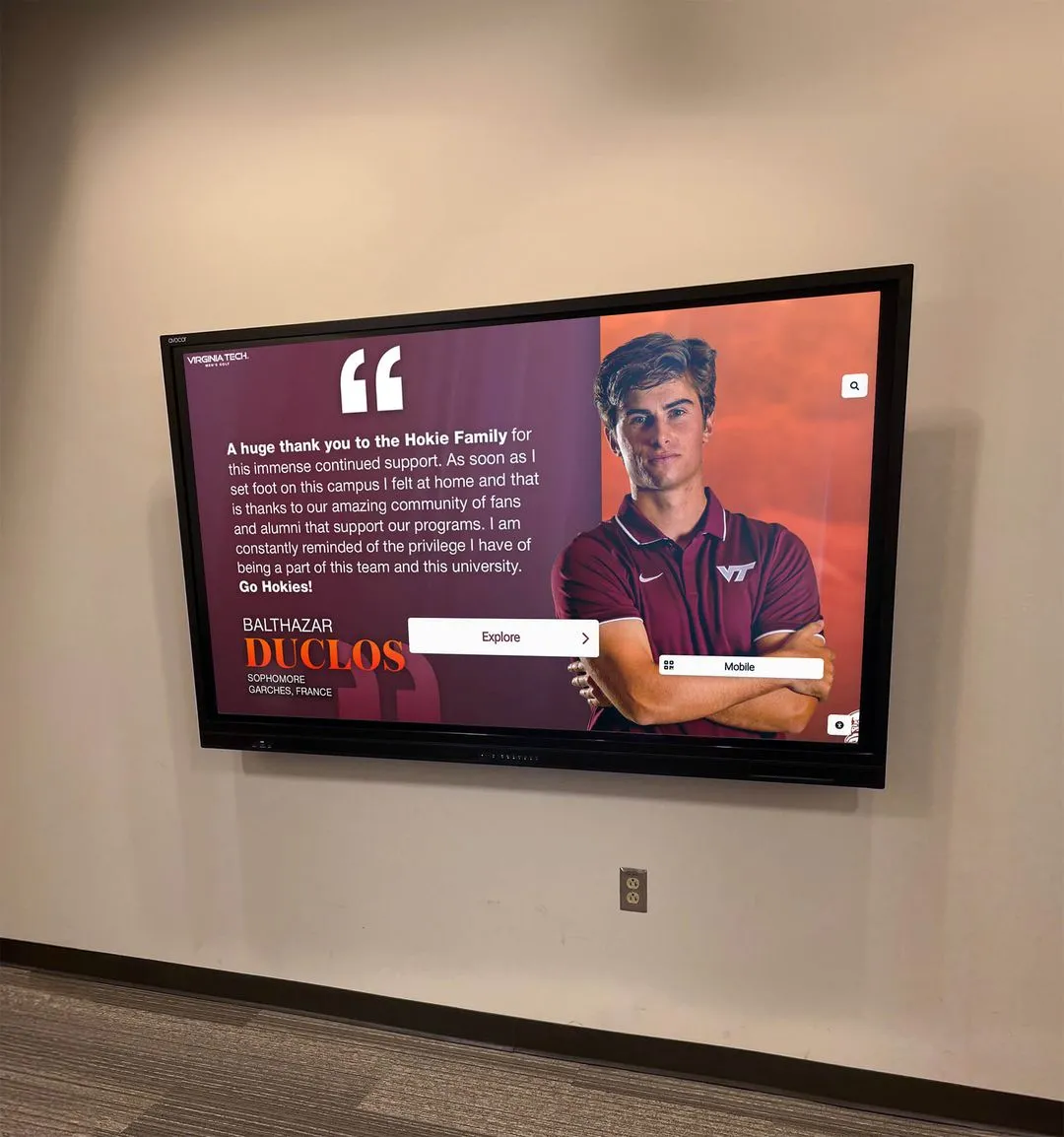
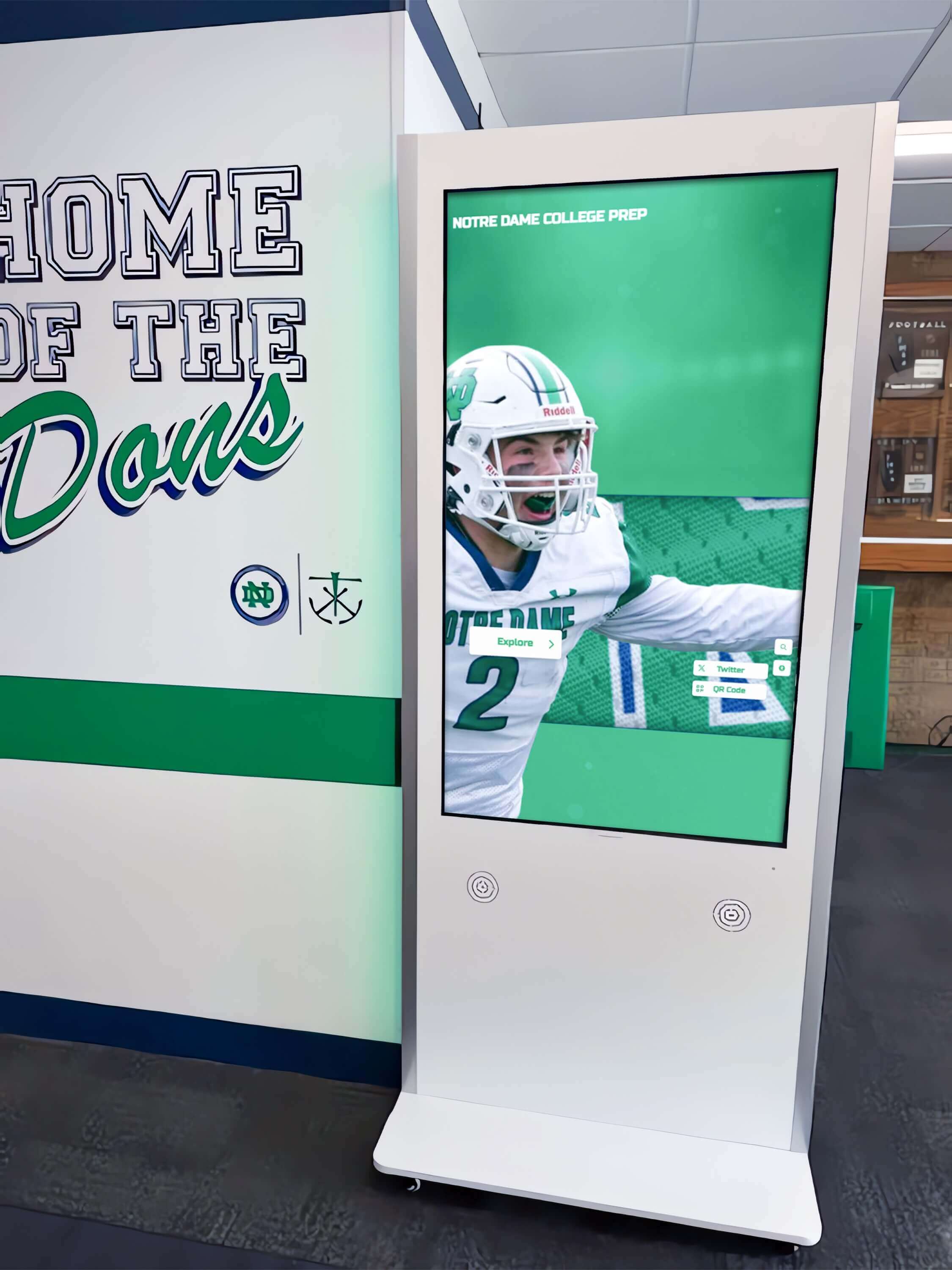
Interactive hall of fame displays invite visitors to explore athletic history — one screen can hold decades of records and media
Donor Recognition Walls
Organizations that acknowledge major contributors can use interactive displays to present giving histories, named spaces, and donor profiles in far more depth than a static plaque wall allows. Interactive donor recognition is particularly effective at fundraising events, where prospective contributors can browse the names and stories of existing donors on their own schedule. For more on how schools and nonprofits approach this, see interactive digital display donor recognition.
Campus Directories and Wayfinding Kiosks
Large campuses — high schools, colleges, medical centers, corporate facilities — use interactive kiosks as digital directory boards. Visitors can search for a staff member’s room, get directions to a specific building entrance, or view a campus map without stopping to ask someone. This application requires directory data to be kept current, which makes a well-maintained CMS essential from day one.
Record Boards and Achievement Walls
Athletic record boards have traditionally been painted or engraved on permanent panels. Digital versions update automatically when records are broken, display full historical bests, and can include multimedia context — which game the record was set in, a photo of the record-holder, the season’s win-loss record. They also eliminate the cost and lead time of repainting or re-engraving every time a record changes.
Lobby Welcome and Event Displays
Many schools run their touchscreen displays in a dual mode: interactive during regular hours when visitors are present, and digital signage mode during events — broadcasting schedules, sponsor recognition, or announcements on a timed loop. Displays that support both modes deliver more value per installation.
For a comprehensive look at how schools deploy these displays across different campus locations, this resource on interactive display solutions for schools covers the most common configurations.
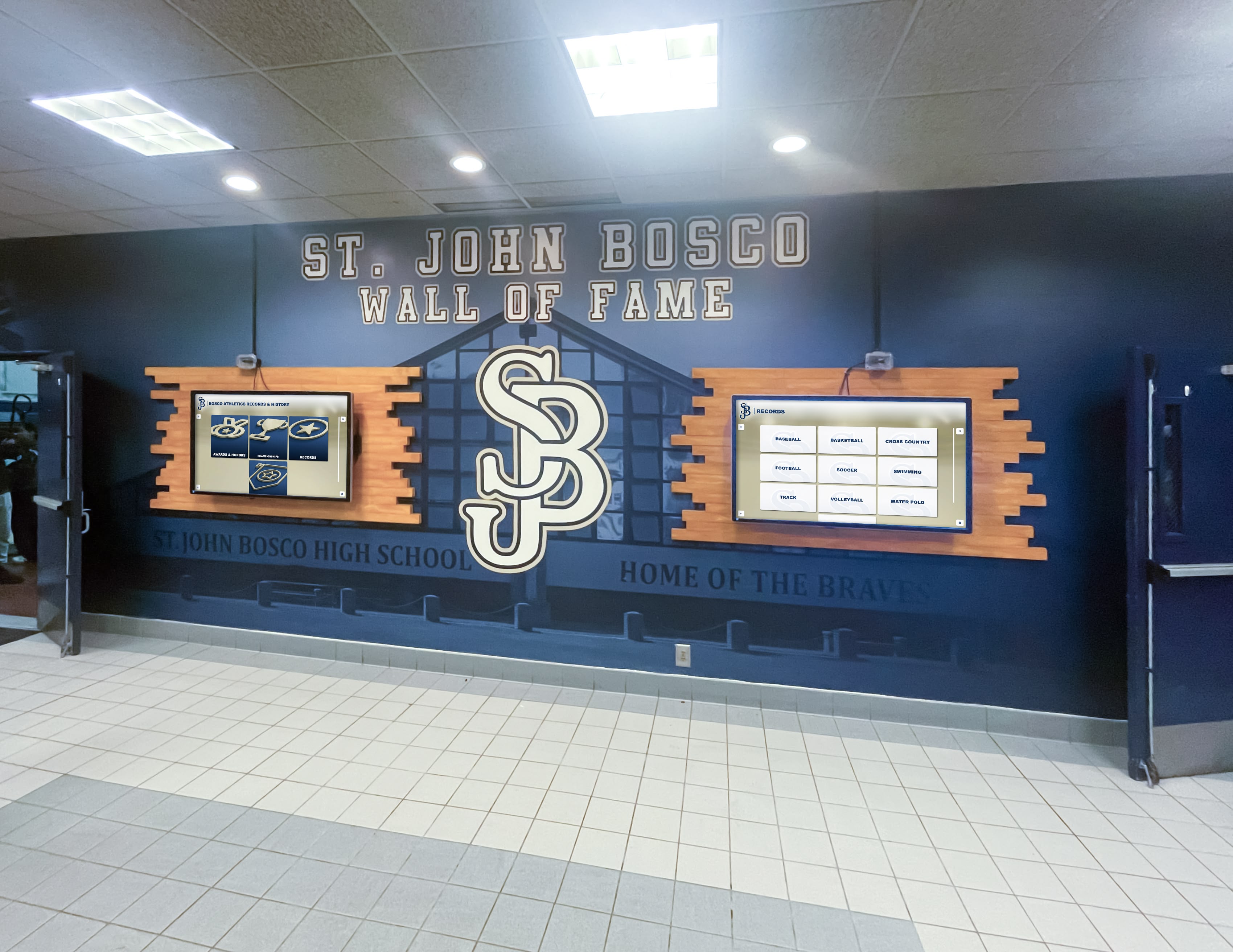
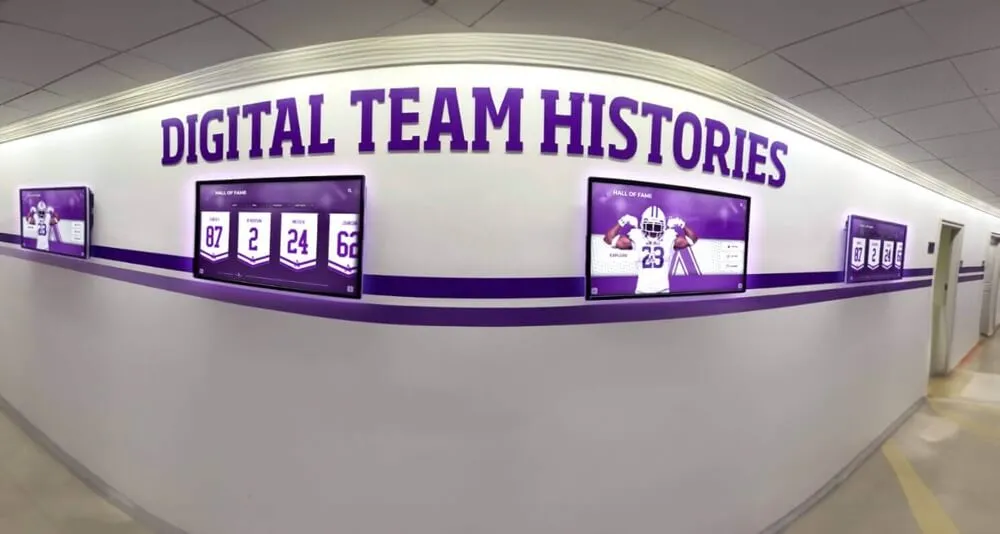
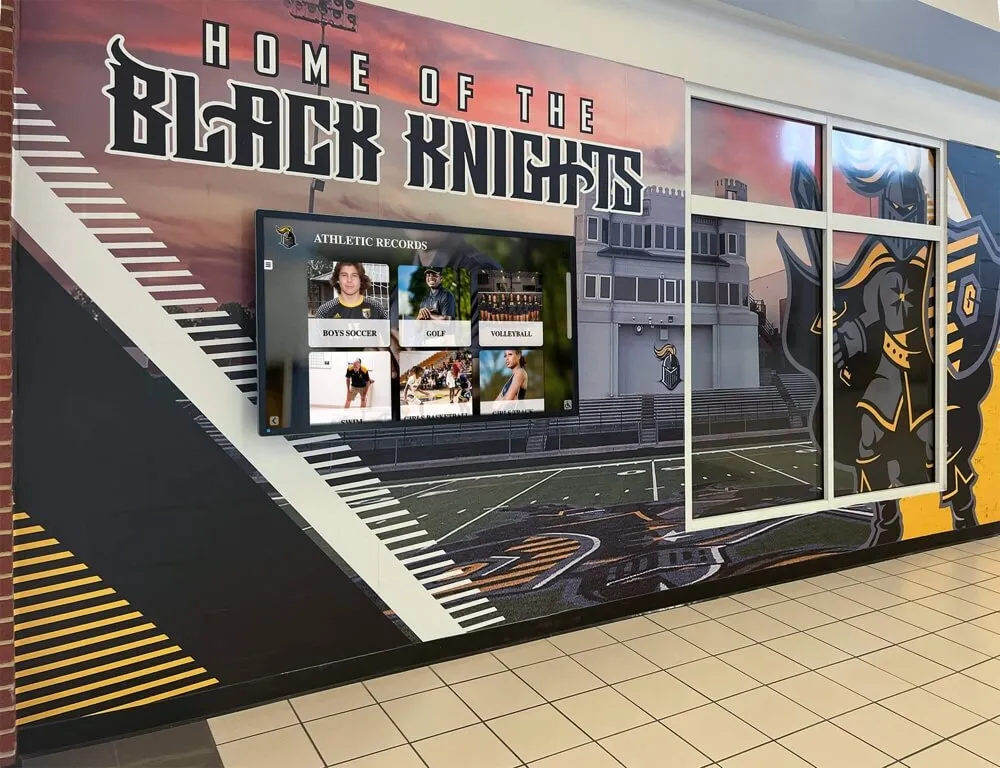
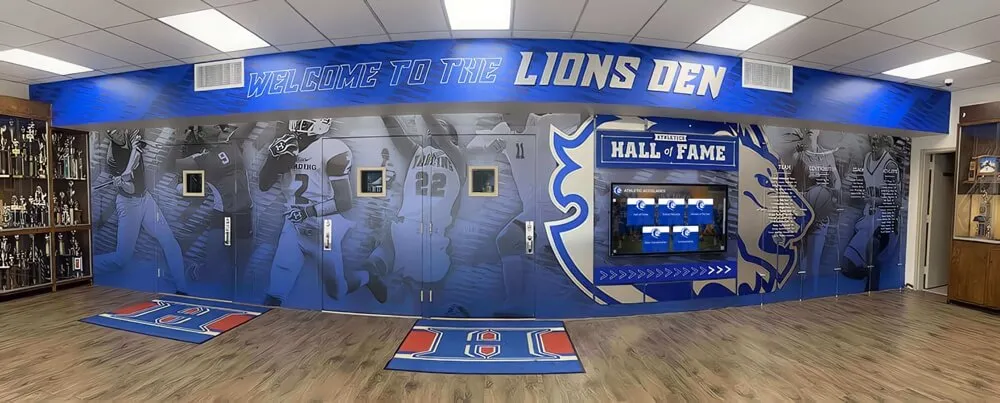
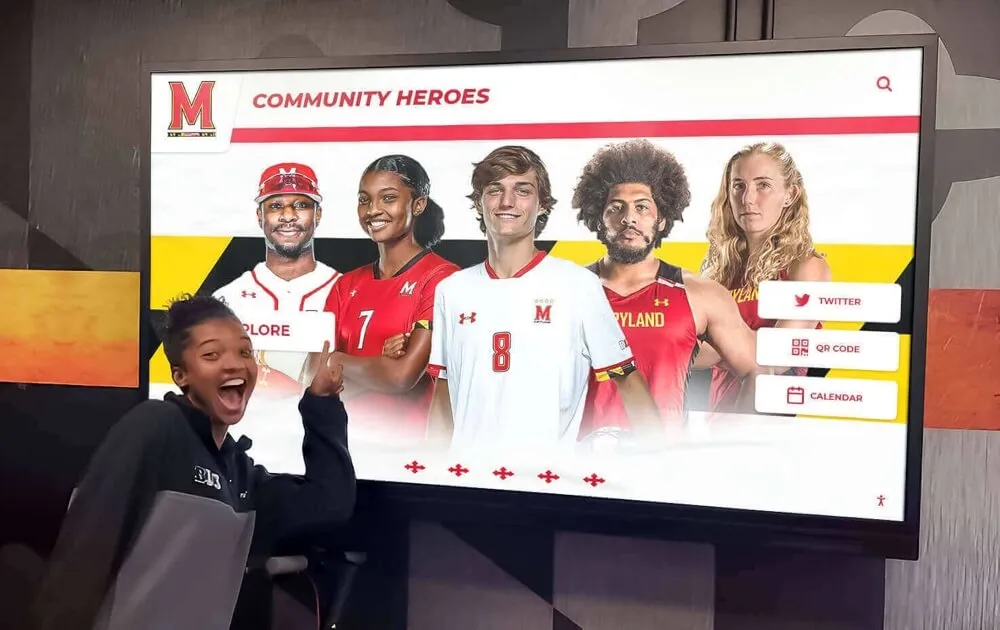
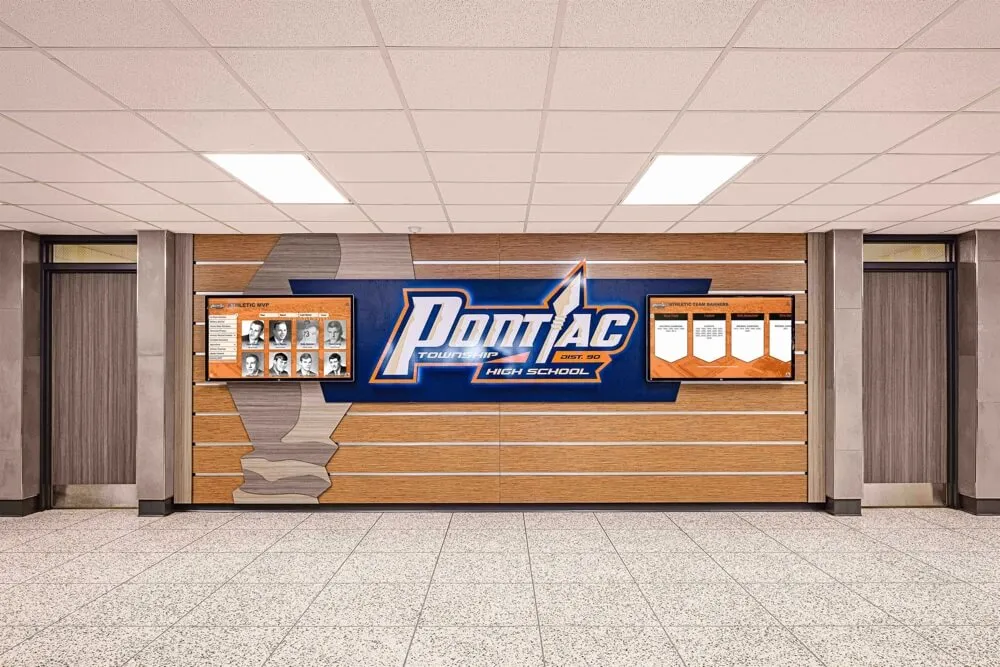
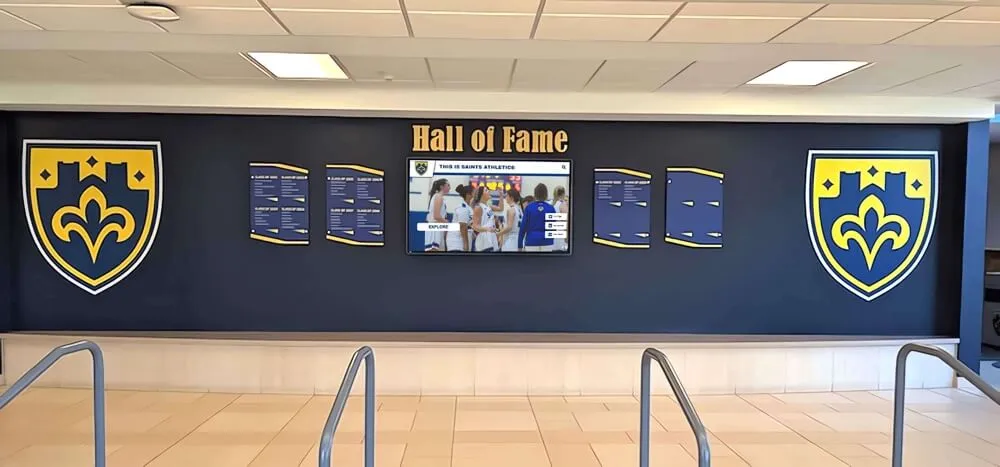
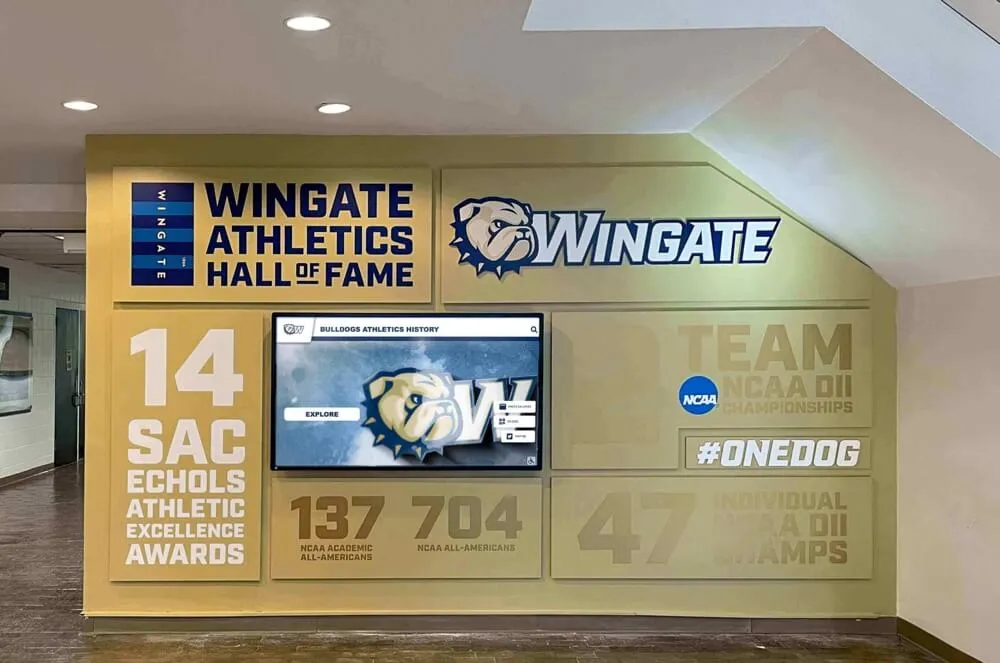
Multi-screen recognition walls can present different content categories simultaneously — one screen for records, another for profiles or announcements
Installation: What the Process Looks Like
Understanding how installations proceed helps you plan timelines and coordinate the right teams.
Phase 1: Site Assessment
Before any hardware is ordered, a site assessment confirms wall construction, available power and data runs, ambient light levels, and viable mount positions. For complex installations — multi-screen walls, kiosk arrays, or displays that require electrical or construction work — this assessment should happen four to six weeks before the target installation date.
Phase 2: Mounting and Power
Professional AV or general contractors handle the physical installation: anchoring mounts, pulling cable, installing outlets, and securing the display to the mount. A single-display installation typically takes one to two days. Multi-screen configurations take longer depending on cabling complexity.
Phase 3: Network and Computing Setup
Once the hardware is mounted, IT staff configure network connectivity and the computing device. This includes network credentials, IP assignment, remote access configuration, and any firewall rules needed for the CMS to communicate with cloud services.
Phase 4: Software Configuration and Content Population
The CMS is configured, content is uploaded, and the interactive application is tested against the display hardware. For recognition displays with deep historical archives, this phase takes the most calendar time — digitizing old photos, entering historical records, formatting profiles. Many organizations use a new display installation as the catalyst for fully documenting their athletic history or donor recognition program for the first time.
Total project timelines from contract signing to go-live commonly run four to eight weeks when accounting for hardware lead times, site preparation, content population, and staff training. Well-organized organizations with existing digital archives can move faster.
Phase 5: Staff Training and Handoff
The content administrator — typically an athletic director, principal’s administrative assistant, or communications coordinator — is trained on the CMS. This training should cover adding new records, updating profiles, managing user permissions, and troubleshooting basic display issues. Quality vendors provide recorded training sessions, searchable documentation, and ongoing support rather than a single handoff meeting.
ADA Accessibility Requirements
Any display installed in a public school or organization that serves the general public must comply with ADA accessibility standards. For touchscreen displays specifically, several requirements apply.
Mounting height and reach range. The ADA requires that operable controls be reachable by users in wheelchairs. For interactive touchscreen displays, the accessible reach range is 15 to 48 inches above the floor for forward reach, and 9 to 54 inches for side reach. Interactive touch points — menus, search inputs, navigation buttons — should fall within this range.
Floor clearance. Freestanding kiosk bases must not protrude into accessible paths of travel in a way that creates a tripping or navigation hazard.
WCAG 2.1 AA compliance. For web-based interactive signage software — which includes most cloud-managed systems — WCAG 2.1 AA compliance means the interface works with screen readers, meets color contrast requirements, and provides text alternatives for non-text content. This standard is increasingly cited in ADA enforcement actions involving digital displays in public facilities.
Audio alternatives. If the display presents safety or access information, it should provide both visual and audible output options.
Organizations purchasing interactive displays should request specific ADA compliance documentation from vendors — not general assurances. “Our product is accessible” without reference to specific standards or third-party testing is not a verifiable commitment.
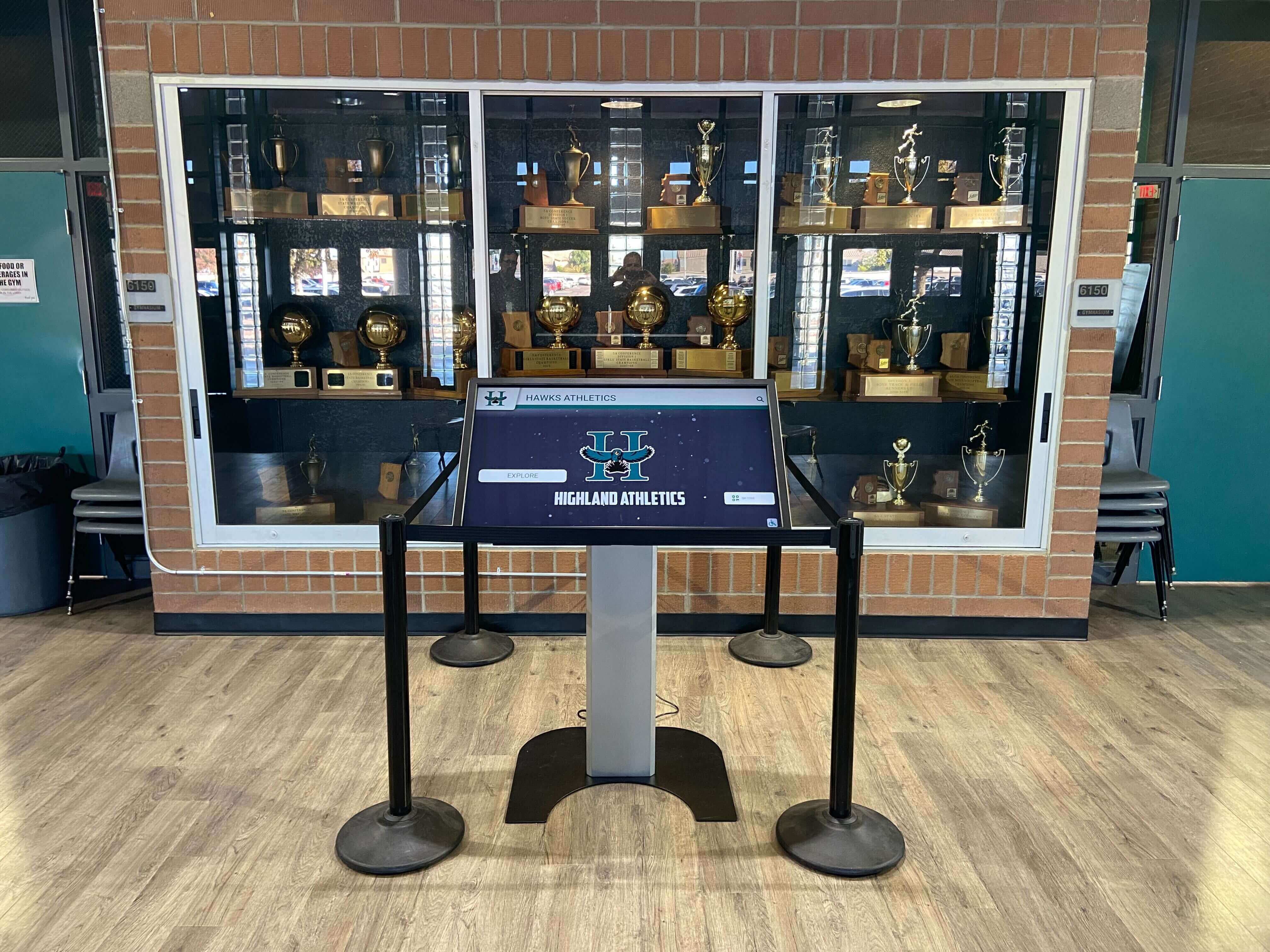
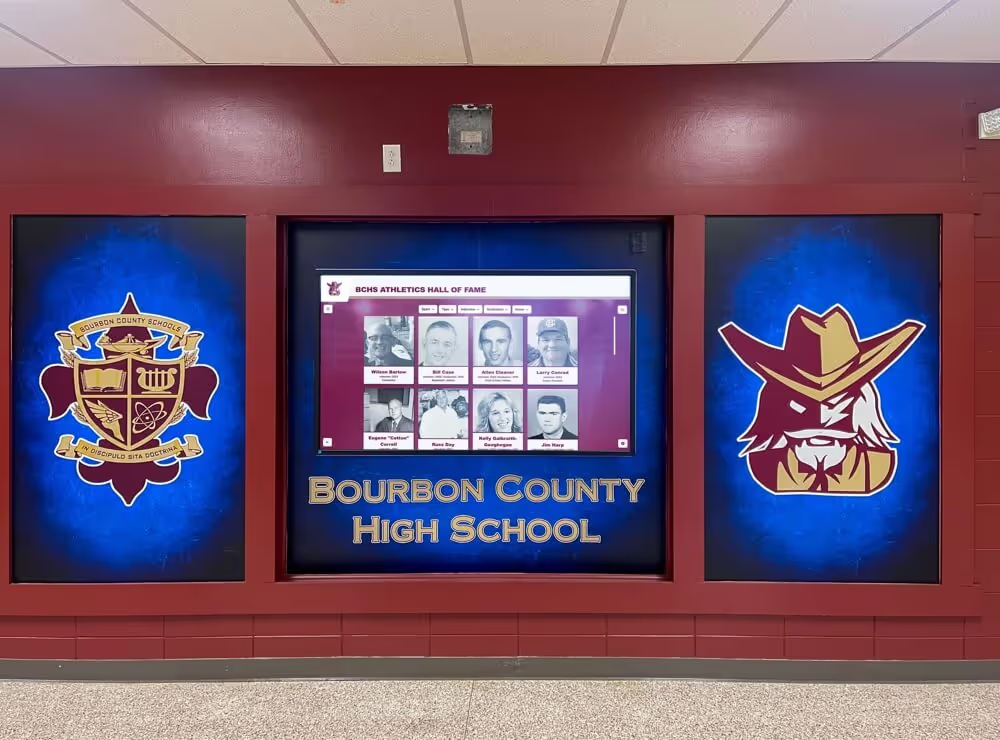
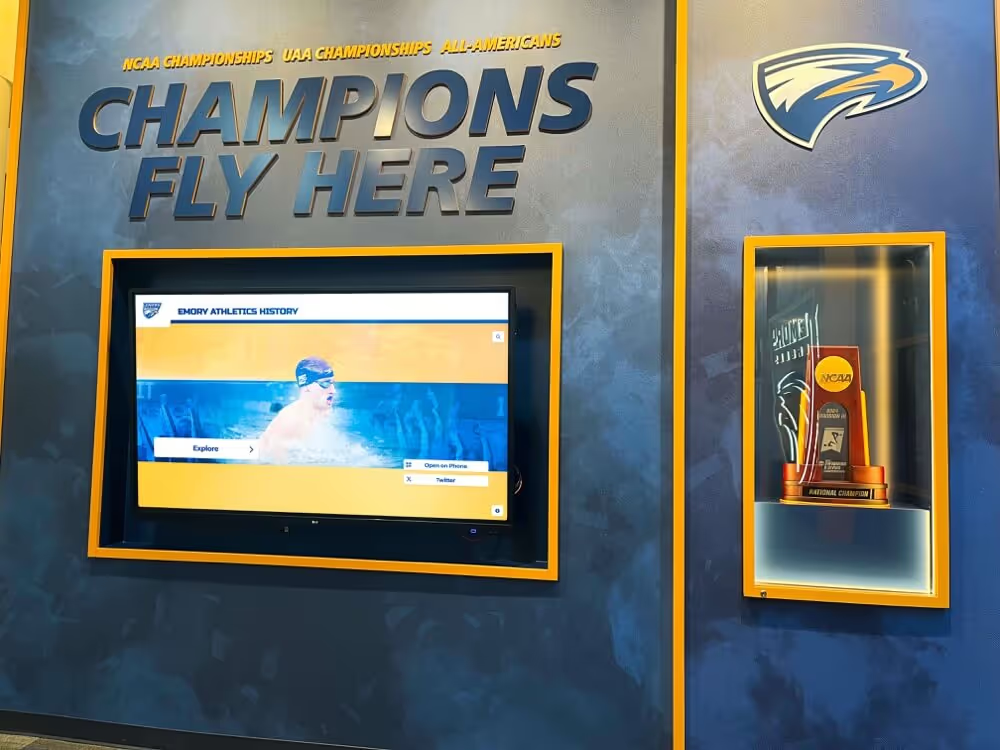
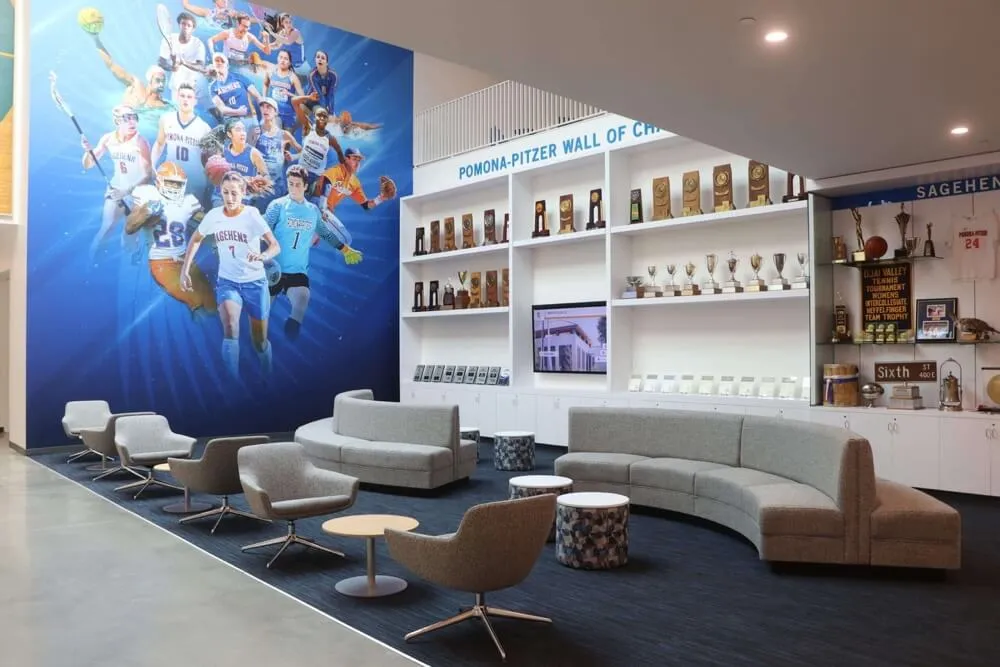
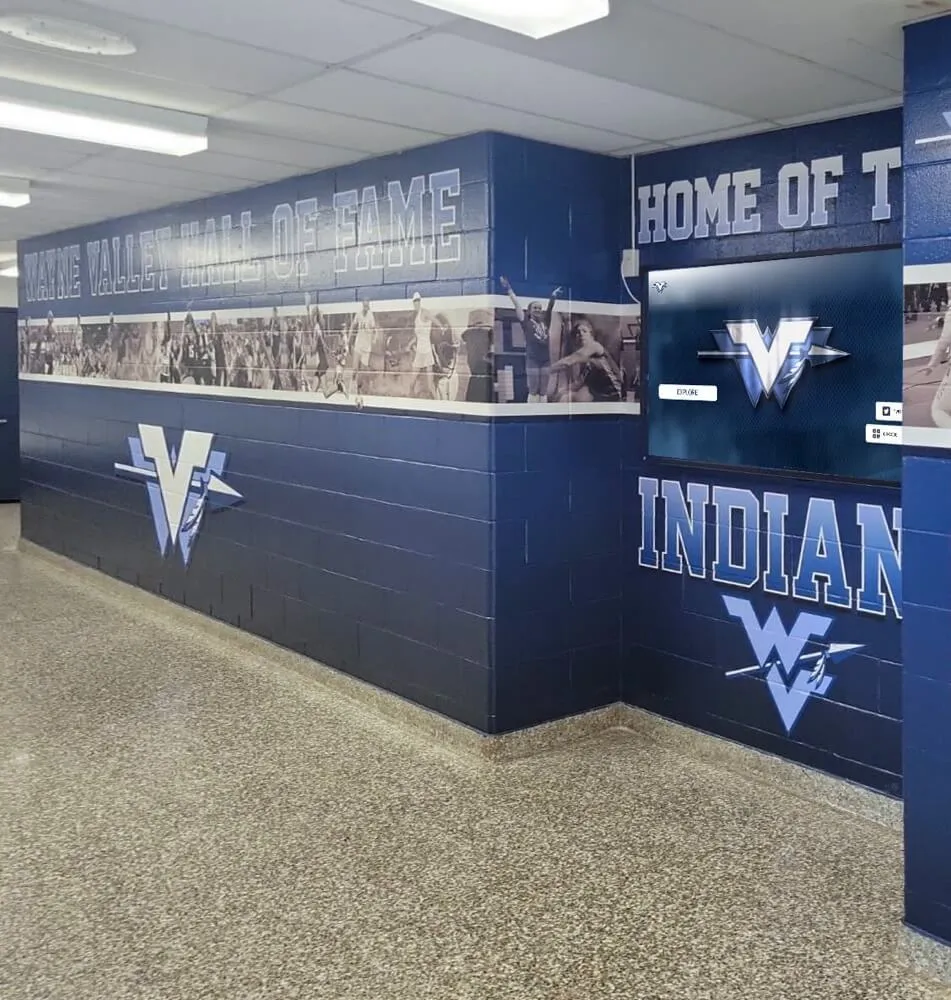
Touchscreen kiosks can be integrated into existing trophy case spaces without replacing the full display — the screen adds searchability to physical artifacts
Content Management and Ongoing Maintenance
A touchscreen display is only as useful as the content it holds. Outdated records, missing photos, and stale profiles undermine the value of any recognition display.
Assign content ownership. Designate one person — and a backup — as the content manager for each display. Without clear ownership, updates happen sporadically and content grows stale between seasons.
Set an update schedule. For athletic record boards, updates should happen within a week of records being set. For hall of fame displays, plan an annual content review tied to your induction process. For campus directories, review and update at the start of each academic year.
Plan for software updates. The CMS and display application receive periodic updates from the vendor. Confirm whether updates are automatic, require IT approval, or need manual action. Automatic updates reduce administrative burden but may occasionally change interface behavior; manual updates give more control but require someone to act.
Hardware maintenance. Clean touch screens regularly using appropriate solutions — diluted isopropyl alcohol or a manufacturer-specified cleaner applied to a soft cloth, never sprayed directly on the panel. Commercial displays are designed to withstand regular cleaning; follow the manufacturer’s maintenance guide for specifics on the touch overlay coating.
Monitor uptime. Cloud-managed display systems typically include uptime monitoring that sends alerts when a display goes offline. Configure these alerts during initial setup so display failures are caught quickly — not discovered days later when a visitor or staff member mentions the screen is blank.
For a detailed comparison of how digital displays stack up against traditional physical installations over time — including long-term maintenance cost differences — see digital wall of fame vs. physical displays.
Choosing the Right System: What Matters Most
With many vendors and hardware configurations available, these criteria separate good decisions from costly mistakes.
Evaluate software before hardware. The software determines your daily experience with the system. Hardware can be upgraded or replaced; switching CMS platforms requires migrating all your content. Spend the most evaluation time on the CMS, not the display spec sheet.
Require a true web-based CMS. Some systems require proprietary software installed on a specific desktop computer to manage content. A web-based CMS accessible from any browser on any device — including a personal laptop at home — gives your team flexibility and removes dependency on a single machine or network location.
Match the vendor to your use case. A vendor that has deployed hundreds of athletic recognition displays understands induction workflows, record-keeping structures, and content hierarchies specific to that context. Ask how many installations they have completed in your exact use case and what content structures they support.
Clarify the support model. Understand what happens when something breaks. Is there a phone number to call during school hours? A dedicated account manager who knows your installation? A documented SLA for response times? Confirm these details before signing a contract, not after.
Confirm content scalability. If you add a second display in three years, can it share content with the first through the same CMS? Can individual entries be published to some displays but not others? These questions matter less on day one and much more in year three.
This interactive touchscreen kiosk software comparison guide covers evaluation criteria across major platforms in depth.
Why Rocket Alumni Solutions Is the Best Choice for School and Institutional Recognition Displays
For schools and organizations focused on athletic recognition, donor walls, academic achievement displays, and alumni engagement, Rocket Alumni Solutions offers a platform built specifically for these use cases — not adapted from a generic digital signage system.
ADA WCAG 2.1 AA compliance. Rocket Alumni Solutions is a web-based platform, which means the interactive application running on the display meets documented WCAG 2.1 AA standards. This matters in public school facilities where ADA compliance is not optional.
Auto-ranking record boards. When a new athletic record is entered, the platform automatically maintains correct rank order across all categories. No manual re-sorting, no seasonal repaints, no delay between when a record is set and when it appears correctly on the display.
QR code mobile access. Any visitor who wants to continue browsing on their phone — or who cannot comfortably reach the display’s touch surface — can scan a QR code to access the same content on a mobile device. This extends the practical reach of every installation to anyone in the building.
Cloud-based CMS with remote updates. Changes published in the CMS appear on the display within minutes. Athletic directors, administrators, and communications staff can update content from any device with internet access, without requiring IT involvement or physical presence at the display.
Unlimited content capacity. No per-inductee pricing, no caps on photo or video storage, no limits on the number of records. An institution’s entire athletic, academic, or donor history can live in a single platform without artificial constraints.
Sponsorship suite. Displays can include rotating sponsor recognition — logos, messages, and promotions — alongside recognition content. This capability allows organizations to generate revenue from the display installation over time.
Digital signage mode. Outside interactive browsing sessions, the display broadcasts a looping digital signage feed — useful for event announcements, schedule information, or sponsor visibility during high-traffic periods.
More than 600 institutions across the country rely on Rocket Alumni Solutions platforms to manage their interactive recognition displays.
Frequently Asked Questions
What is the difference between interactive and passive digital signage? Passive digital signage broadcasts content on a timed loop with no input from viewers. Interactive digital signage responds to touch — visitors navigate menus, search for content, and access detail pages on their own schedule. Interactive displays require more sophisticated software and a computing device capable of running an interactive application, but they deliver significantly more value for recognition and directory applications where visitors want to find specific information rather than watch a generic loop.
How long does an interactive touch screen digital signage installation take? A single-display installation with no construction requirements typically takes one to three days once hardware has arrived and site preparation is complete. More complex installations — multi-screen walls, kiosk arrays, displays requiring new electrical or cabling work — require additional time. Total project timelines from contract to go-live commonly run four to eight weeks when accounting for hardware lead times, site prep, content population, and staff training.
Do interactive touch screen displays work with gloves? Capacitive (PCAP) touchscreens require a bare finger or a conductive stylus. Infrared touchscreens respond to any object, including gloved hands. If your environment involves visitors who may be wearing gloves — athletic facilities in cold climates, outdoor kiosks, medical settings — confirm the touch technology type with your vendor before purchase.
How often does content need to be updated on a recognition display? Update frequency depends on content type. Athletic record boards should be updated within days of new records being set. Hall of fame profiles are typically added annually at induction time. Directory content should be reviewed each academic year. On average, a well-managed recognition display requires about two to four hours of content management time per month.
What should I ask a vendor before signing a contract for an interactive signage system? The most important questions: Is the CMS browser-based and accessible from any device? What happens to my content if I end the contract — can I export it? How are software updates delivered, and do they require any action from my team? What does ADA compliance mean specifically for your platform, and how is it documented? What is the process and timeline for support when something breaks during a live event?
Build Your Interactive Display on the Right Foundation
Interactive touch screen digital signage is straightforward to evaluate once you understand what each component does and what questions matter most. The technology works well in school and public-facility environments when you use commercial-grade hardware, choose software built for your specific use case, and plan the installation site before ordering anything.
For schools and organizations focused on athletic recognition, donor acknowledgment, and alumni engagement, the right software platform makes the difference between a display your staff can manage confidently and one that creates ongoing friction because updates are too complicated or content structures don’t match your programs.
Book a demo with Rocket Alumni Solutions to see how the platform handles athletic hall of fame content, record boards, donor recognition, and campus directories — with a custom mock-up built from your institution’s own information.